Data Feeding
Now that we have our schema ready and the application is deployed, it's time to actually get some data into Vespa. Feeding is the process of writing documents to Vespa, updating them, and deleting them. Think of it as the "write" side of things while querying is the "read" side.
In this chapter, we will look at how document IDs work, the JSON format Vespa uses for documents, the different tools you can use to feed data, and how to do partial updates. We will also cover some practical things like handling failures and what to do when things go wrong.
Document IDs
Every document in Vespa needs a unique identifier. This is called a document ID and it does a few important things. It uniquely identifies the document across your entire deployment, it determines which content nodes will store the document, and it lets you retrieve, update, or delete that specific document later.
A document ID has a specific format:
id:<namespace>:<document-type>:<key-value>:<user-specified-id>
Let's break this down. The id: prefix just says "this is a document identifier". The namespace is a logical grouping you define, usually the name of your application. The document-type must match one of the document types from your schemas. The key-value part is optional and controls how data is distributed (more on that in a moment). And the user-specified-id is the actual unique ID for your document.
A simple document ID looks like this:
id:myapp:product::ABC123
This identifies a document in the "myapp" namespace, of type "product", with the ID "ABC123". The double colon :: means we're not using the optional key-value part.
If you want to control where Vespa stores the document, you can use the key-value part with a numeric key:
id:myapp:product:n=42:ABC123
The n=42 part tells Vespa to put this document in a specific bucket. Documents with the same numeric key end up on the same content nodes. This is handy when you want related documents stored together, like all products from the same seller or all posts from the same user.
You can also use string keys with the g= prefix:
id:myapp:post:g=user123:post456
This groups all posts for "user123" together. Vespa hashes the key to figure out where to store the document, so documents with the same key will be co-located. This is really useful for personal search or streaming search scenarios where you want to quickly retrieve all documents for a specific user.
For most applications, you don't need to worry about the key-value part. Just use simple IDs and let Vespa handle the distribution automatically. It calculates a hash from the entire ID and spreads documents evenly across nodes. See the document ID reference for all the details.
The Document JSON Format
Before we look at the different feeding tools, let's understand the JSON format that Vespa uses for document operations. All the tools we'll cover use this same format under the hood, so knowing it well will help you no matter which tool you pick.
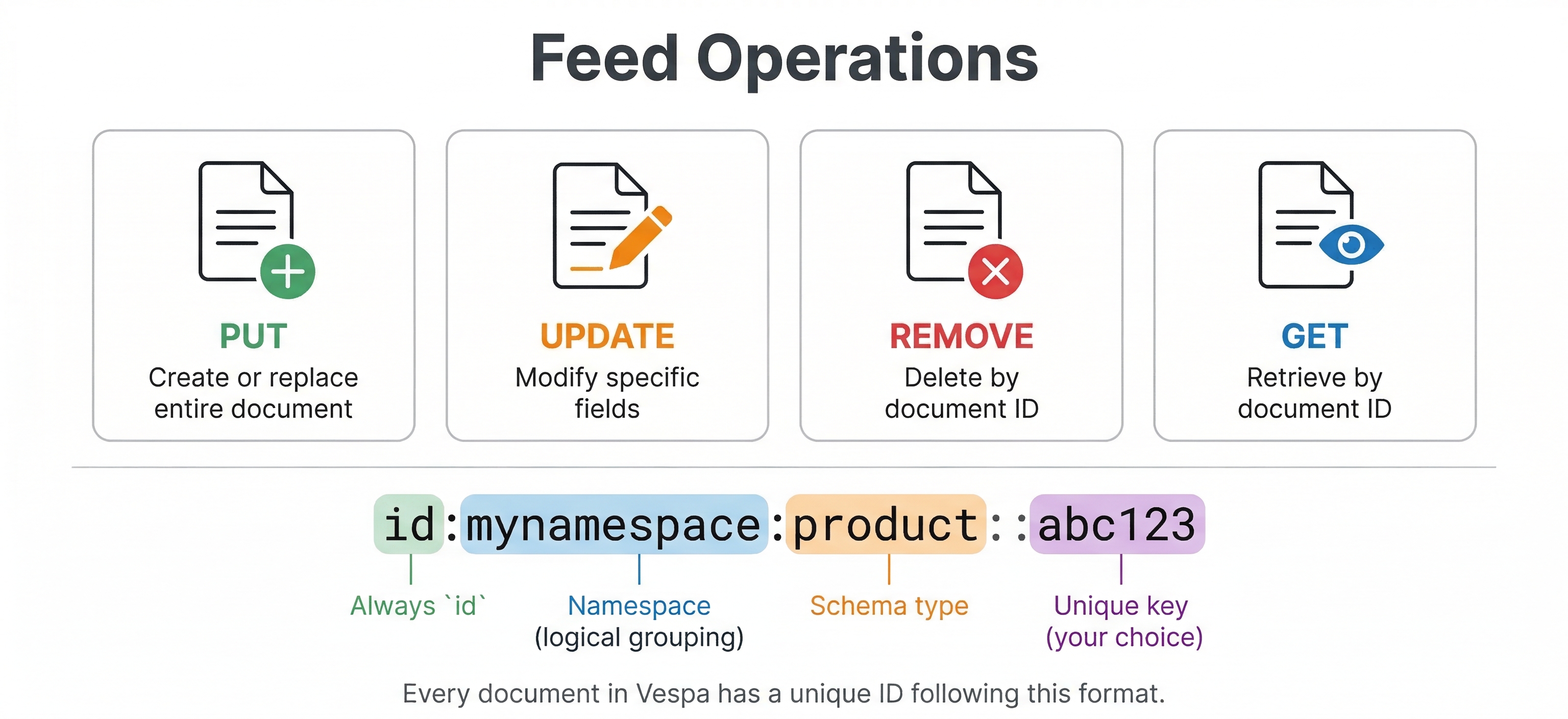
A put operation creates a new document or replaces an existing one:
{
    "put": "id:myapp:product::ABC123",
    "fields": {
        "product_id": "ABC123",
        "title": "Laptop Computer",
        "price": 999.99
    }
}
The "put" key holds the full document ID, and "fields" holds the field values. If a document with this ID already exists, the put replaces it entirely. The old document is gone and the new one takes its place.
An update operation modifies specific fields without touching the rest:
{
    "update": "id:myapp:product::ABC123",
    "fields": {
        "price": { "assign": 899.99 }
    }
}
Notice something different here? Update fields use operation objects like { "assign": 899.99 } instead of plain values. There are several different update operations and we'll cover them later in this chapter.
A remove operation deletes a document:
{
    "remove": "id:myapp:product::ABC123"
}
Simple as that. Give it the document ID and the document is gone.
Feeding Complex Field Types
Simple fields like strings and numbers are straightforward in JSON, but some of the more complex field types have specific formats you should know about.
Tensor fields use a plain JSON array for indexed tensors. If your schema defines a field as tensor<float>(x[4]), you just feed it as an array:
{
    "put": "id:myapp:product::ABC123",
    "fields": {
        "embedding": [0.12, 0.56, 0.34, 0.78]
    }
}
For mapped tensors like tensor<float>(category{}), you use an object where keys are the labels:
{
    "put": "id:myapp:product::ABC123",
    "fields": {
        "category_scores": {
            "electronics": 0.9,
            "computers": 0.7
        }
    }
}
Position fields take an object with lat and lng:
{
    "put": "id:myapp:store::store42",
    "fields": {
        "location": { "lat": 37.4181, "lng": -122.0256 }
    }
}
Array fields use JSON arrays:
{
    "put": "id:myapp:product::ABC123",
    "fields": {
        "tags": ["laptop", "electronics", "portable"]
    }
}
Weightedset fields use an object where keys are the elements and values are the integer weights:
{
    "put": "id:myapp:product::ABC123",
    "fields": {
        "tags": {
            "laptop": 10,
            "electronics": 5,
            "portable": 3
        }
    }
}
For the full reference on all field type formats, see the document JSON format documentation.
Ways to Feed Data
Vespa gives you several ways to feed documents. Each one has its own strengths and the right choice depends on your situation: how much data you have, what language you're working in, and whether you're in development or production.
Vespa CLI
The Vespa CLI is the easiest way to feed documents, especially during development. It handles both single-document operations and high-throughput batch feeding.
For single documents, the CLI has subcommands for each operation type:
# Put a document
vespa document put id:myapp:product::ABC123 product.json

# Get a document
vespa document get id:myapp:product::ABC123

# Update a document
vespa document update id:myapp:product::ABC123 update.json

# Remove a document
vespa document remove id:myapp:product::ABC123
You can also pass data inline if you don't want to create a file:
vespa document put id:myapp:product::ABC123 \
    --data '{"fields":{"title":"Laptop Computer","price":999.99}}'
For feeding many documents at once, create a JSON Lines file where each line is a document operation and use the vespa feed command:
vespa feed products.jsonl
A JSON Lines file looks like this, one operation per line:
{"put":"id:myapp:product::1","fields":{"title":"Laptop","price":999.99}}
{"put":"id:myapp:product::2","fields":{"title":"Keyboard","price":79.99}}
{"put":"id:myapp:product::3","fields":{"title":"Monitor","price":349.99}}
You can also pipe data directly into vespa feed from stdin:
cat products.jsonl | vespa feed -
The - tells it to read from stdin instead of a file. This works nicely in Unix pipelines where you might be transforming data with jq or a custom script before feeding it to Vespa.
The vespa feed command uses HTTP/2 under the hood and is optimized for throughput. It handles connection management, retries, and gives you progress feedback showing documents per second and error counts.
Feeding to Local vs. Vespa Cloud
When running Vespa locally, the CLI connects to localhost by default and you don't need any authentication:
vespa config set target local
vespa feed products.jsonl
When feeding to Vespa Cloud, you need to set up authentication first. The CLI supports both certificate-based (mTLS) and token-based auth:
# Configure for cloud
vespa config set target cloud
vespa config set application mytenant.myapp

# Authenticate via browser
vespa auth login

# Feed - the CLI uses your stored credentials automatically
vespa feed products.jsonl
For token-based authentication (useful for CI/CD pipelines), you can set an environment variable:
export VESPA_CLI_DATA_PLANE_TOKEN='your-token-value'
vespa feed products.jsonl
The nice thing is that the document JSON format and feed file format are exactly the same whether you're feeding locally or to the cloud. Only the target and authentication are different.
PyVespa
If you're working in Python, PyVespa gives you a nice Pythonic interface for feeding. It's a great choice when your data pipeline is Python-based or when you're doing data science work in Jupyter notebooks.
For single document operations:
from vespa.application import Vespa

# Connect to local Vespa
app = Vespa(url="http://localhost", port=8080)

# Put a document
response = app.feed_data_point(
    schema="product",
    data_id="ABC123",
    fields={
        "product_id": "ABC123",
        "title": "Laptop Computer",
        "price": 999.99
    }
)
print(response.is_successful())

# Update a document
response = app.update_data(
    schema="product",
    data_id="ABC123",
    fields={"price": {"assign": 899.99}}
)

# Get a document
response = app.get_data(schema="product", data_id="ABC123")

# Delete a document
response = app.delete_data(schema="product", data_id="ABC123")
For batch feeding, PyVespa provides feed_iterable which uses a thread pool for concurrent feeding, and feed_async_iterable which uses async HTTP/2 for even higher throughput:
docs = [
    {"id": "1", "fields": {"title": "Laptop", "price": 999.99}},
    {"id": "2", "fields": {"title": "Keyboard", "price": 79.99}},
    {"id": "3", "fields": {"title": "Monitor", "price": 349.99}},
]

def callback(response, id):
    if not response.is_successful():
        print(f"Failed to feed {id}: {response.status_code}")

app.feed_iterable(
    iter=docs,
    schema="product",
    callback=callback,
    max_queue_size=1000,
    max_workers=8
)
If you have data in a pandas DataFrame, you just need to convert it to the right format first:
docs = [
    {"id": str(row["product_id"]), "fields": {"title": row["title"], "price": row["price"]}}
    for row in df.to_dict(orient="records")
]
app.feed_iterable(iter=docs, schema="product", callback=callback)
The feed_iterable method also supports updates and deletes through the operation_type parameter:
# Batch update
app.feed_iterable(iter=updates, schema="product", operation_type="update")

# Batch delete
app.feed_iterable(iter=deletes, schema="product", operation_type="delete")
For connecting to Vespa Cloud, you provide your credentials when creating the client:
# Using mTLS certificates
app = Vespa(
    url="https://myapp.mytenant.aws-us-east-1c.z.vespa-app.cloud",
    cert="/path/to/data-plane-public-cert.pem",
    key="/path/to/data-plane-private-key.pem"
)

# Or using a token
app = Vespa(
    url="https://myapp.mytenant.aws-us-east-1c.z.vespa-app.cloud",
    vespa_cloud_secret_token=os.environ["VESPA_CLOUD_SECRET_TOKEN"]
)
HTTP Document API
The HTTP Document API is Vespa's low-level interface for document operations. All the other tools we talked about use this API underneath. If you're building custom feeding applications or integrating Vespa into existing systems in languages other than Python or Java, this is what you'd work with directly.
The API lives at the /document/v1/ endpoint. The URL path maps directly to the parts of a document ID:
/document/v1/<namespace>/<document-type>/docid/<user-specified-id>
So the document ID id:myapp:product::ABC123 maps to /document/v1/myapp/product/docid/ABC123. Pretty straightforward.
To put a document:
curl -X POST \
    http://localhost:8080/document/v1/myapp/product/docid/ABC123 \
    -H "Content-Type: application/json" \
    -d '{
        "fields": {
            "product_id": "ABC123",
            "title": "Laptop Computer",
            "price": 999.99
        }
    }'
To get a document:
curl http://localhost:8080/document/v1/myapp/product/docid/ABC123
To update a document:
curl -X PUT \
    http://localhost:8080/document/v1/myapp/product/docid/ABC123 \
    -H "Content-Type: application/json" \
    -d '{
        "fields": {
            "price": { "assign": 899.99 }
        }
    }'
To remove a document:
curl -X DELETE \
    http://localhost:8080/document/v1/myapp/product/docid/ABC123
Vespa responds with a JSON object telling you whether the operation succeeded or failed. If you need high-throughput feeding over the HTTP API, use HTTP/2 with multiple streams over a single connection. This is much faster than HTTP/1.1 where each operation needs its own request-response cycle.
Java Feed Client
For Java and JVM-based applications, Vespa provides the vespa-feed-client library. This is the production-grade option for when you need to embed feeding directly in a Java application or build custom data pipelines on the JVM. It uses HTTP/2 with async operations and has built-in dynamic throttling and retry logic. If your backend is Java-based, this is the way to go for production feeding.
Partial Updates
One of the really nice things about Vespa is that you can update individual fields without rewriting the entire document. This is called a partial update, and it's way more efficient than reading a document, changing it, and putting it back.
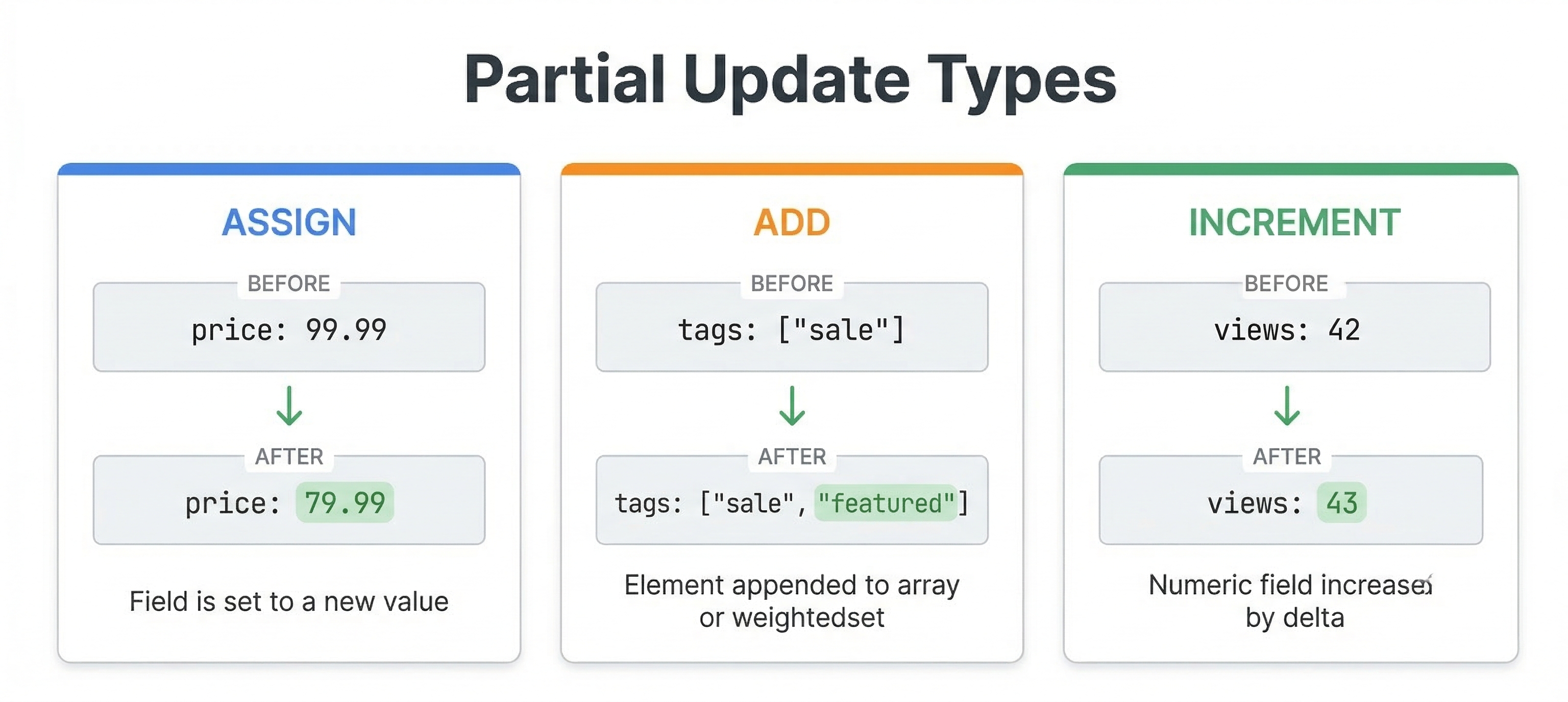
The assign operation sets a field to a new value:
{
    "update": "id:myapp:product::ABC123",
    "fields": {
        "price": { "assign": 899.99 },
        "title": { "assign": "Updated Laptop Computer" }
    }
}
For attribute fields, assign happens in place in memory and is super fast. For index fields, Vespa needs to read the document from storage, apply the update, and write it back, which is slower but still faster than a full put.
Beyond assign, there are several other update operations for different scenarios.
The increment and decrement operations add or subtract from numeric fields. Great for counters and scores:
{
    "update": "id:myapp:product::ABC123",
    "fields": {
        "view_count": { "increment": 1 }
    }
}
The multiply and divide operations do arithmetic on numeric fields:
{
    "update": "id:myapp:product::ABC123",
    "fields": {
        "price": { "multiply": 0.9 }
    }
}
The add operation appends values to array or weightedset fields:
{
    "update": "id:myapp:product::ABC123",
    "fields": {
        "tags": { "add": ["sale", "featured"] }
    }
}
The remove operation removes values from array or weightedset fields:
{
    "update": "id:myapp:product::ABC123",
    "fields": {
        "tags": { "remove": ["discontinued"] }
    }
}
You can combine multiple update operations in a single request, even on different fields. This lets you atomically update several parts of a document at once.
Upserts with create
By default, updating a document that doesn't exist gives you an error. But sometimes you want the update to just create the document if it's missing. You can do this by adding "create": true:
{
    "update": "id:myapp:product::ABC123",
    "create": true,
    "fields": {
        "title": { "assign": "Laptop Computer" },
        "view_count": { "increment": 1 }
    }
}
This is called an upsert. When the document doesn't exist, Vespa creates a new one and applies the update operations. For assign, the field gets the given value. For increment, it starts from 0 and adds. For add on arrays, it starts with an empty collection. This pattern is really useful for counters and aggregation scenarios where you don't know ahead of time whether the document exists.
Conditional Operations
Sometimes you only want an operation to go through if the document meets certain conditions. Vespa supports this with the "condition" field, which takes a document selection expression:
{
    "update": "id:myapp:product::ABC123",
    "condition": "product.in_stock==true",
    "fields": {
        "price": { "multiply": 0.9 }
    }
}
This update only applies the 10% discount if the product is currently in stock. If the condition is false, Vespa returns a 412 (Precondition Failed) status. Conditions work with puts, updates, and removes. They're handy for things like optimistic concurrency control or business rules you want enforced at the data layer.
Visiting: Exporting Documents from Vespa
Sometimes you need to read back all the documents stored in Vespa. Maybe you want to create a backup, migrate data to a different system, or just debug something. The Vespa CLI has the vespa visit command for this:
# Visit all documents
vespa visit

# Visit a specific content cluster
vespa visit --content-cluster search

# Only get document IDs (no field data)
vespa visit --field-set "[id]"

# Filter with a selection expression
vespa visit --selection "product.price > 100"

# Output in a format you can re-feed
vespa visit --make-feed
The --make-feed flag is really useful for migrations. It outputs documents in the same JSON format that vespa feed accepts, so you can pipe the output directly into a feed command pointed at a different cluster:
vespa visit --make-feed > backup.jsonl
vespa feed backup.jsonl --target http://new-cluster:8080
For large datasets, you can speed things up by using slices to parallelize the visit:
# Run these in separate terminals or processes
vespa visit --slices 4 --slice-id 0
vespa visit --slices 4 --slice-id 1
vespa visit --slices 4 --slice-id 2
vespa visit --slices 4 --slice-id 3
See the visiting documentation for more details.
Use Stable Document IDs
This is an important best practice: always use stable, deterministic document IDs. Your IDs should come from your source data in a consistent way, not be randomly generated.
Why does this matter? If you re-feed the same document with the same ID, Vespa treats it as a replacement. This means you can safely re-run your feeding process without creating duplicates. Your feeding pipeline becomes idempotent, which is a fancy way of saying "running it twice gives you the same result as running it once".
For example, if you're indexing products from a database, use the product's database ID as part of the Vespa document ID. If you're indexing articles, use the article URL or slug. If you're indexing user profiles, use the user ID.
Don't generate random UUIDs for document IDs. If you do, re-feeding the same logical document creates a duplicate because Vespa has no way to know they represent the same thing. With stable IDs, re-feeding simply replaces the existing document. Clean and simple.
Put vs. Update: When to Use Which
Understanding when to use puts versus updates can make a big difference in efficiency.
Use put operations when you're loading data for the first time or when you need to replace a document completely. Puts are straightforward and work well for batch loading scenarios where you're indexing an entire dataset.
Use update operations when you only need to change specific fields in existing documents. Updates are more efficient than reading a doc, changing it, and putting it back. They're ideal for things like incrementing counters, toggling availability flags, changing prices, or any scenario where only some fields change.
For attribute fields, updates are especially efficient because they happen in place in memory. You can get very high update throughput (hundreds of thousands of updates per second per node) when updating attribute fields.
For index fields, updates require reading the document from the document store, applying the change, and writing back. Slower, but still more efficient than a full put of the entire document.
In practice, many applications use a combination. An e-commerce site might reload all products nightly using put operations, and then use updates for real-time inventory and price changes during the day. Full refresh at night, quick updates during the day.
Handling Failures and Retries
When feeding large amounts of data, some operations will fail. It's just a fact of life. Networks have hiccups, nodes restart, and resources get temporarily exhausted. Your feeding code needs to handle this gracefully.
Vespa returns HTTP status codes for each operation. A 200 means success. There are two important error codes you should understand:
429 (Too Many Requests) is Vespa's way of saying "slow down, I can't keep up". It's a backpressure signal. When you see 429 responses, back off a bit, wait, and try again. This is totally normal under heavy load and doesn't mean anything is wrong with Vespa or your data. It just means you're feeding faster than Vespa can process.
500 or 503 errors mean something went wrong on the server side. These could be temporary (like a node restarting) or could indicate a configuration problem. Temporary errors should be retried after a short delay. If they keep happening, you need to investigate.
A good feeding strategy uses exponential backoff for retries. When you hit a failure, wait a short time and retry. If it fails again, wait a bit longer. This gives Vespa time to recover while still making progress.
The good news is that the Vespa CLI, PyVespa, and the Java feed client all handle retries automatically. If you're using the HTTP API directly, you'll need to implement retry logic yourself.
For production feeding pipelines, keep an eye on your success and failure rates. Track how many documents you're feeding per second, what percentage succeed, and how many retries are happening. This kind of monitoring helps you tune your feeding rate and catch problems early.
Feeding Performance Tips
Here are some practical tips for getting good feeding throughput:
-
Use HTTP/2 when possible. It lets multiple operations fly over a single connection, which is way faster than HTTP/1.1 where each operation needs its own request-response round trip. The Vespa CLI, PyVespa's
feed_async_iterable, and the Java feed client all use HTTP/2 by default. -
Feed to multiple container nodes in parallel if you have more than one. Spreading the load across containers increases total throughput.
-
Keep your documents a reasonable size. Very large documents (several megabytes) slow down both feeding and queries. If you have large binary data like images, store them somewhere else and just keep URLs or embeddings in Vespa.
-
For updates, prefer attribute fields when possible. Attribute updates are orders of magnitude faster than index field updates because they skip the read-modify-write cycle to disk.
-
Send many operations in quick succession over persistent connections rather than spacing them out. While Vespa processes each document individually, keeping the pipeline full is more efficient.
-
Watch for 429 responses. If you're seeing a lot of them, you're feeding too fast. Back off. Continuing to send requests when Vespa is already overwhelmed just wastes resources without improving throughput.
Feeding from Different Data Sources
In the real world, you'll feed Vespa from various sources depending on your architecture.
For batch loading from databases, you might export data to JSON Lines files and use the CLI, or write a Python script with PyVespa that reads and feeds the data. For really large datasets, the vespa feed command or the Java feed client will give you the best throughput.
For real-time updates from application backends, you'll typically call the HTTP API directly from your application code. When a user updates their profile or a product price changes, your application calls Vespa's document API to update the corresponding document.
For streaming data from message queues like Kafka, you'd build a consumer that reads messages and feeds them to Vespa. The consumer needs to handle retries and backpressure properly. The Java feed client is well suited for this since it handles throttling and retries automatically.
Which approach is right depends on your data sources, how fast you need things to show up, and your scale. The important thing is knowing what tools are available so you can pick the right one.
Generating Embeddings During Feeding
If your application uses vector search, your documents need embeddings. You can generate these externally (say, using Python with Sentence Transformers) and include them in your feed data as tensor fields. But there's another option: Vespa can generate the embeddings for you during the feeding process using built-in embedders.
With a built-in embedder, you configure an embedding model in your application's services.xml and then use the embed function in your schema's indexing expression. Vespa generates the embedding automatically when the document is fed. You never need to send raw vectors in your feed data.
Here's what the schema side looks like:
schema doc {
    document doc {
        field title type string {
            indexing: summary | index
        }
    }

    field title_embedding type tensor<float>(x[384]) {
        indexing: input title | embed my-embedder | attribute | index
        attribute {
            distance-metric: angular
        }
    }
}
The input title | embed my-embedder part takes the title field value, runs it through the embedder named "my-embedder" (configured in services.xml), and stores the resulting vector. When you feed a document, you just provide the title text and Vespa takes care of the rest.
This has some real advantages. No external embedding pipeline needed. The same embedder is used for all documents, so you get consistency. And you can re-embed documents by triggering a reindex without having to re-feed them. The tradeoff is that embedding generation uses CPU (or GPU) resources on your Vespa nodes, so it adds load during feeding.
We won't set up embedders in this module since it involves services.xml configuration (that's covered in Module 3). In the labs, we'll use external embedding generation with Sentence Transformers so you can see both approaches as you work through the course.
Troubleshooting Common Feeding Issues
When you're just getting started with feeding, you'll probably run into a few common issues. Here's what they look like and how to fix them.
"Document type does not exist" means the document type in your document ID doesn't match any schema in your deployed application. Check that the type portion of your document ID (the second part, like product in id:myapp:product::123) exactly matches one of your schema names. These are case-sensitive, so Product and product are different.
"Field does not exist" means you're trying to feed a field that isn't defined in your schema. Either there's a typo in the field name, or you forgot to add the field to your schema and redeploy before feeding. Vespa is strict about this and won't silently ignore unknown fields.
"Could not parse field" usually means you have a type mismatch. You might be feeding a string where Vespa expects a number, or an array where it expects a single value. Double-check your field types in the schema against the JSON you're feeding. A classic example is feeding "price": "99.99" (a string) when the schema expects "price": 99.99 (a number).
Slow feeding throughput is usually because of one of these: using HTTP/1.1 instead of HTTP/2, feeding one document at a time synchronously, or feeding documents with very large text fields that need heavy indexing. Switch to vespa feed or PyVespa's batch methods for better performance.
Documents fed successfully but not showing up in queries can happen if you query right after feeding. Vespa makes documents searchable within milliseconds, but if you're feeding and querying in the same script without any pause, there can be a tiny window where the document is accepted but not yet visible. Adding a small delay (a second or two) usually fixes this. Also double-check that you're querying the right document type in your YQL.
Next Steps
Now that you know how to get data into Vespa, the next chapter covers how to query that data. We'll look at YQL (Vespa Query Language), how to construct queries, and the various parameters that control search and retrieval.
For detailed API references and advanced feeding topics, see the document API guide, the document API reference, and the feeding performance guide.