Result Format
When you send a query to Vespa, you get back a JSON response containing the matching documents and metadata about the query execution. Understanding this response format helps you build applications that display results to users, process data programmatically, and debug query behavior. In this chapter, we will explore the structure of Vespa's search results and learn how to control what information gets returned.
The Search API
Vespa's search API lives at the /search/ endpoint. You send queries there using HTTP GET or POST, and Vespa returns JSON responses. Whether you use the Vespa CLI, PyVespa, or call the HTTP API directly, they all ultimately hit this endpoint.
A typical search request looks like:
curl "http://localhost:8080/search/?yql=select+*+from+music+where+true&hits=5"
The response is a JSON document with a specific structure that we will explore in detail.
Response Structure
A Vespa search response has several top-level fields that provide information about the query and results.
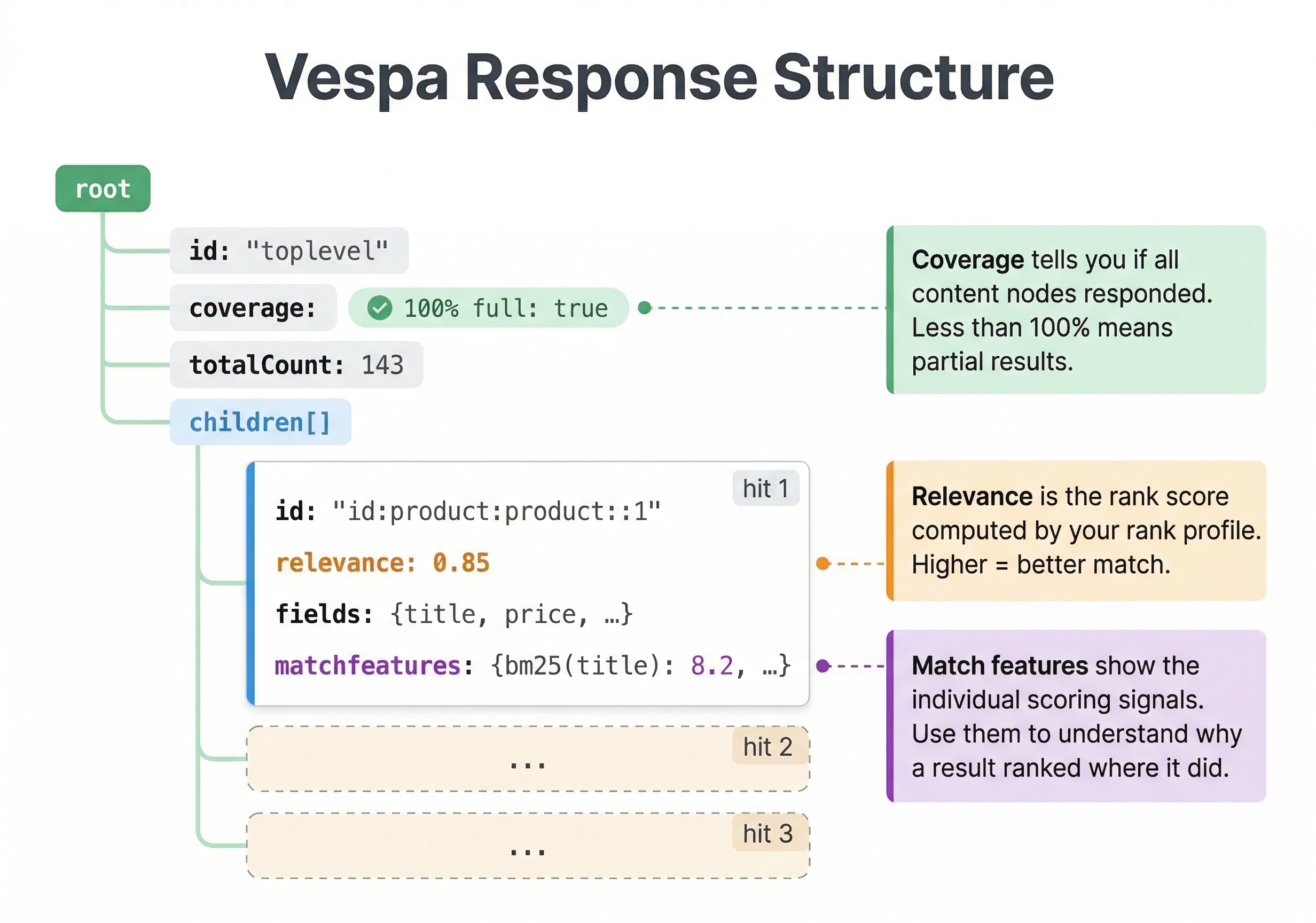
The root object is the main container for results. Inside root, you will find timing information, hit counts, and the actual result documents. The root object has these key properties:
id is a unique identifier for this query execution. Vespa generates this automatically.
relevance is present but typically not used at the root level. It becomes meaningful at the individual hit level.
fields contains metadata including totalCount (the total number of matching documents, not just what was returned).
coverage provides information about how much of your data was searched. If some nodes were unavailable or the query timed out, coverage indicates whether results are complete.
children is an array containing the actual result documents, called hits.
Let's look at a simplified example response:
{
  "root": {
    "id": "toplevel",
    "relevance": 1.0,
    "fields": {
      "totalCount": 143
    },
    "coverage": {
      "coverage": 100,
      "documents": 5000,
      "full": true,
      "nodes": 1,
      "results": 1,
      "resultsFull": 1
    },
    "children": [
      {
        "id": "id:myapp:music::song1",
        "relevance": 0.8523,
        "source": "music",
        "fields": {
          "artist": "The Beatles",
          "album": "Abbey Road",
          "year": 1969,
          "category": "rock"
        }
      }
    ]
  }
}
The totalCount tells you how many documents matched the query, even though you might only return a few. This is useful for showing users "Found 143 results" while displaying only 10 at a time.
The coverage object shows whether the query searched all data. If full is true, all content nodes responded and the results are complete. If full is false, some nodes failed to respond or the query timed out, and results might be missing documents. The coverage percentage indicates what fraction of your data was searched.
Individual Hit Structure
Each document in the children array is called a hit. A hit has several standard fields:
The id is the document's full Vespa document ID. You can use this to retrieve the document directly or to link to a detail page in your application.
The relevance is the document's score from the ranking function. By default, results are sorted by relevance in descending order, so the first hit has the highest score. Relevance values depend on your ranking function, but higher numbers mean more relevant.
The source indicates which document type this hit came from. If you query multiple document types, this helps you distinguish them.
The fields object contains the actual document data. Which fields appear here depends on what you selected in your YQL query and what document summary is being used.
Document Summaries
Not all fields in your schema need to be returned in every query. Document summaries let you control which fields are included in results. This is important for performance because fetching and transferring field data takes time and bandwidth.
By default, Vespa returns all fields marked with indexing: summary in your schema. But you can define custom summary classes that include only specific fields. This is useful when you have different display needs. A search results page might show titles and snippets, while a detail page shows all fields.
You define a summary class inside your schema block (outside the document block):
schema music {
    document music {
        field title type string {
            indexing: summary | index
        }
        field artist type string {
            indexing: summary | index
        }
        field album type string {
            indexing: summary | index
        }
        field year type int {
            indexing: summary | attribute
        }
        field lyrics type string {
            indexing: summary | index
        }
    }

    document-summary short {
        summary title {}
        summary artist {}
    }
}
This creates a summary class called "short" that includes only title and artist fields. To use it in a query, add the summary parameter:
vespa query "select * from music where true" "summary=short"
Now the response includes only the fields defined in the short summary, even if your document has many more fields. This reduces response size and speeds up queries.
You can define multiple summary classes for different use cases:
document-summary detail {
  summary title {}
  summary artist {}
  summary album {}
  summary year {}
  summary lyrics {}
}

document-summary preview {
  summary title {}
  summary artist {}
}
The preview summary might be used for search result lists, while detail is used when displaying a full record.
Field Formatting in Results
Vespa formats different field types appropriately in JSON. Understanding these formats helps you parse results correctly in your application.
String fields appear as JSON strings. Simple and straightforward.
Numeric fields appear as JSON numbers. Integers are integers, floats are floats, with appropriate precision.
Boolean fields appear as JSON booleans (true or false).
Array fields appear as JSON arrays. An array of strings looks like ["value1", "value2", "value3"].
Map fields appear as JSON objects. A map with string keys and values looks like {"key1": "value1", "key2": "value2"}.
Struct fields appear as nested JSON objects with the struct's sub-fields as properties.
Tensor fields have a specific format representing their type and values. For a simple vector tensor, you might see:
"embedding": {
  "type": "tensor<float>(x[128])",
  "values": [0.1, 0.2, 0.3, ...]
}
Position fields (latitude/longitude) are formatted with separate lat and lng fields:
"location": {
  "lat": 37.7749,
  "lng": -122.4194
}
Understanding these formats helps you write code to parse and display results correctly.
Controlling Result Size and Pagination
The hits parameter controls how many results to return. The default is usually 10. Set it higher or lower based on your needs:
vespa query "select * from music where true" "hits=20"
For pagination, use the offset parameter to skip results:
vespa query "select * from music where true" "hits=10" "offset=20"
This returns results 21-30, useful for implementing "next page" functionality. Keep in mind that large offsets can be expensive because Vespa still has to find and rank all those documents internally, even the ones you skip.
Timing Information
The response includes timing information helpful for performance analysis. The timing data appears in the response as:
"timing": {
  "querytime": 0.015,
  "summaryfetchtime": 0.002,
  "searchtime": 0.017
}
querytime is how long the query took to execute on content nodes. This is the time spent finding matches and ranking them.
summaryfetchtime is how long it took to fetch the document summaries for results. This depends on which fields you are returning and whether they are attributes (in memory) or need to be fetched from disk.
searchtime is the total time from when Vespa received the query to when it sent the response. This includes query parsing, execution, summary fetching, and result formatting.
These timings help you understand where time is spent and optimize accordingly. If summaryfetchtime is high, consider using a summary class with fewer fields or making frequently accessed fields attributes. If querytime is high, your ranking function might be expensive or your query might be matching too many documents.
Error Handling
When something goes wrong, Vespa includes error information in the response. Errors appear in an errors array:
{
  "root": {
    "errors": [
      {
        "code": 4,
        "summary": "Invalid query parameter",
        "message": "Could not parse query: Unknown field 'nonexistent'"
      }
    ]
  }
}
Each error has a numeric code and a human-readable message. Your application should check for the errors array and handle problems appropriately.
Grouping and Aggregation Results
If your query includes grouping or aggregation (which we will cover in the ranking module), the results appear in a different part of the response. Grouped results have a nested structure under the root that reflects the grouping hierarchy:
{
  "root": {
    "children": [
      {
        "id": "group:string:rock",
        "relevance": 1.0,
        "value": "rock",
        "children": [...]
      }
    ]
  }
}
Each group becomes a node in the result tree with its own children. This structure supports complex multi-level grouping and aggregations.
Highlighting and Dynamic Summaries
For text search applications, you often want to show query terms highlighted in context. Vespa supports dynamic summaries and highlighting, where matched terms are emphasized in returned text snippets. This is configured in your schema and appears in the fields returned.
A highlighted result might look like:
"fields": {
  "title": "The <hi>quick</hi> brown fox"
}
The <hi> tags wrap matched terms, and you can style them in your UI. Dynamic summaries extract relevant snippets from longer text fields, showing the parts that match the query.
Ranking Features in Results
When you are building and debugging rank profiles, you need to understand why a document scored the way it did. Vespa lets you include ranking feature values in each hit's result by defining match-features and summary-features in your rank profile.
match-features are computed during matching and included in results. You define them in your rank profile like this:
rank-profile my_profile {
    first-phase {
        expression: bm25(title) + bm25(body)
    }
    match-features {
        bm25(title)
        bm25(body)
        fieldMatch(title).completeness
    }
}
When you query with this rank profile, each hit includes a matchfeatures object showing the individual feature values:
{
    "id": "id:myapp:doc::123",
    "relevance": 12.45,
    "fields": {
        "title": "Introduction to Machine Learning",
        "matchfeatures": {
            "bm25(title)": 8.23,
            "bm25(body)": 4.22,
            "fieldMatch(title).completeness": 0.75
        }
    }
}
This tells you exactly how much each component contributed to the final score. Without this, you would only see the final relevance number and have no idea what drove it.
summary-features work similarly but are computed after matching, during the summary fetch phase. They are useful for features that are expensive to compute and that you only want for the final result set, not during matching. In practice, match-features is more commonly used because it covers most debugging needs.
These features are essential when you start building complex rank profiles in later modules. They turn ranking from a black box into something you can inspect and understand.
Debugging Queries with Tracing
When a query is not returning the results you expect, Vespa's trace functionality helps you understand what is happening internally. You enable tracing by adding the tracelevel parameter to your query:
vespa query "select * from doc where title contains 'python'" "tracelevel=3"
The trace level controls how much detail you get. Levels 1-3 give progressively more detail on query transformations and searcher execution. Level 4-5 add timing information from content nodes. Level 6-7 include the query execution plan and tree. Higher levels produce a lot of output.
The trace information appears in the response under a trace object. It shows you how Vespa parsed your query, which nodes it dispatched to, how long each phase took, and what transformations were applied to the query tree. This is invaluable when debugging issues like "why is this document not matching?" or "why is this query slow?"
For most debugging scenarios, tracelevel=3 gives you enough information. Only go higher when you need to dig into very specific internal behavior. See the query tracing documentation for all available levels.
Best Practices for Result Handling
To build efficient applications, follow these practices when working with results.
Use custom document summaries to return only the fields you need. Don't return all fields if you only need a few. This reduces response size and improves performance.
For high-traffic applications, consider using summary classes with only attribute fields. Attribute-only summaries are memory operations and extremely fast.
Parse the coverage object to detect incomplete results. If coverage is low, you might want to show a warning to users or retry the query.
Cache results appropriately in your application layer. Identical queries can return cached results without hitting Vespa.
Use the timing information to identify performance issues. If queries are slow, the timing breakdown helps you understand where to optimize.
Handle errors gracefully. Check for the errors array and provide meaningful feedback to users when queries fail.
Example: Processing Results in Python
Here is how you might process Vespa results in Python using PyVespa:
response = app.query(yql="select * from music where album contains 'love'")

# Check for errors
if response.is_successful():
    print(f"Found {response.number_documents_retrieved} results")

    # Process hits
    for hit in response.hits:
        print(f"Title: {hit['fields']['title']}")
        print(f"Relevance: {hit['relevance']}")
        print("---")
else:
    print(f"Query failed: {response.get_json()}")
PyVespa provides helper methods that make working with results easier, but understanding the underlying JSON structure helps when you need to do custom processing.
Next Steps
You now understand Vespa's result format and how to control what data gets returned. The next chapter is a hands-on lab where you will build a small search engine, define schemas, feed data, and run queries to see everything we have covered in action.
For complete details on the result format, see the Vespa default JSON result format reference and the document summaries guide.