YQL - Vespa Query Language
We have so far learned about defining schemas and feeding data. In this chapter, we will see how to query the data that has been fed to the system. Vespa uses YQL (Vespa Query Language) to retrieve the documents. Using YQL, you can filter and rank the data. YQL looks similar to SQL, so if you have database experience, you will find it very familiar. However, what makes it different is the fact that it has features specific to search and retrieval.
In this chapter, we will explore YQL syntax, learn how to construct queries from simple to complex, understand the various operators available, and see how to run queries.
What is YQL
YQL is the query language you use to tell Vespa what data you want to retrieve. Using YQL you can select which fields to return, which documents to consider and how to find documents (retrieval logic). YQL queries are sent to Vespa as part of HTTP requests which are then parsed by Vespa, executed, and results are returned to the end user.
A basic YQL query looks like this:
select * from music where album contains "love"
You can see the similarity with SQL here. It's almost like a sentence in English. We are selecting all fields from documents of type "music" where "album" contains the word "love". This is a basic example for keyword based search. YQL doesn't just filter. It integrates with Vespa's ranking framework, supports vector search, handles complex text matching, and can combine multiple retrieval methods in a single query. And this is what makes it different from SQL which is primarily used for database transactions.
Basic Query Structure
Every YQL query has a few core parts.
-
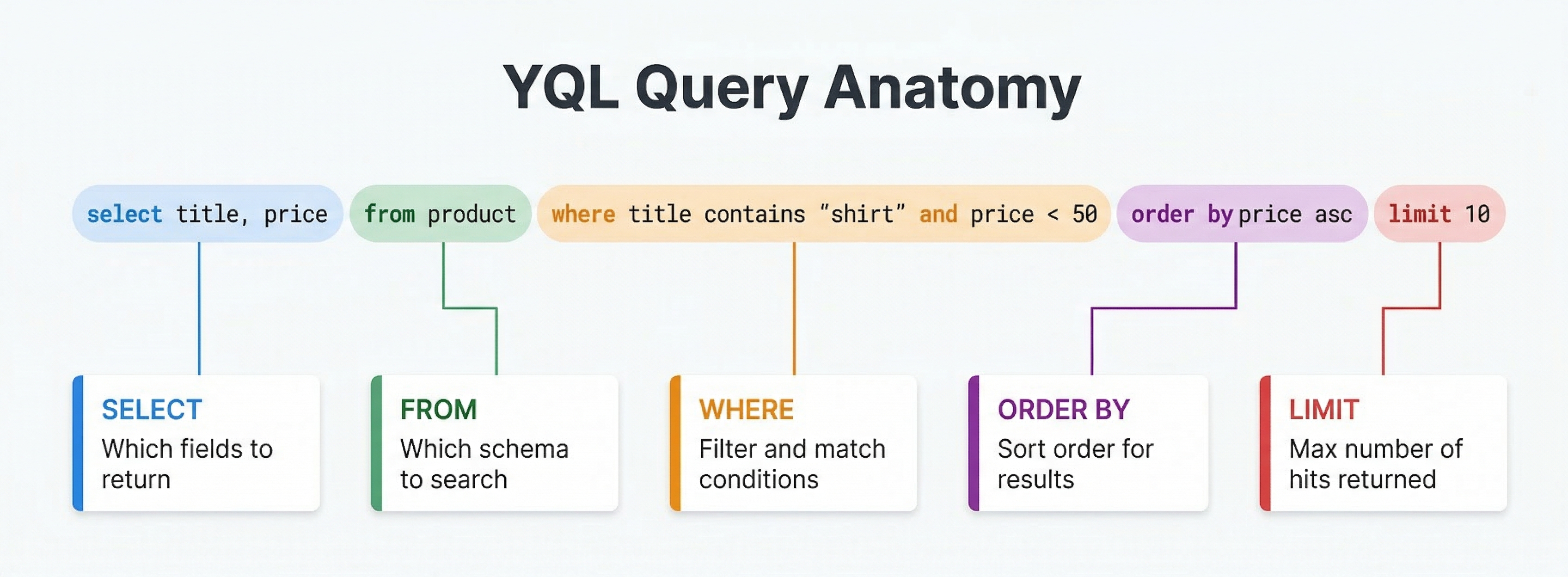
The select clause specifies which fields to return. Use
select *to return all fields, or list specific fields likeselect title, price, category. The fields you select must exist in your schema. If you try to select a field that is not defined or not marked as a summary field, Vespa will return an error. -
The from clause specifies which document type to search. In most cases, this is
from <document-type>where the "document type" matches a schema you defined. You can also usefrom sources *to search across all document types. -
The where clause is where the filtering and search logic lives. This is typically the most complex part of a query. The where clause specifies which documents match your query. You can use text search, filters on structured fields, vector similarity, and combinations of all these.
A more advanced query might look like:
select title, price from product where price < 100 and category contains "electronics"
This searches the document type "product", filters for "items" under 100 (price) in the electronics category, and returns only the title and price fields.
The contains operator
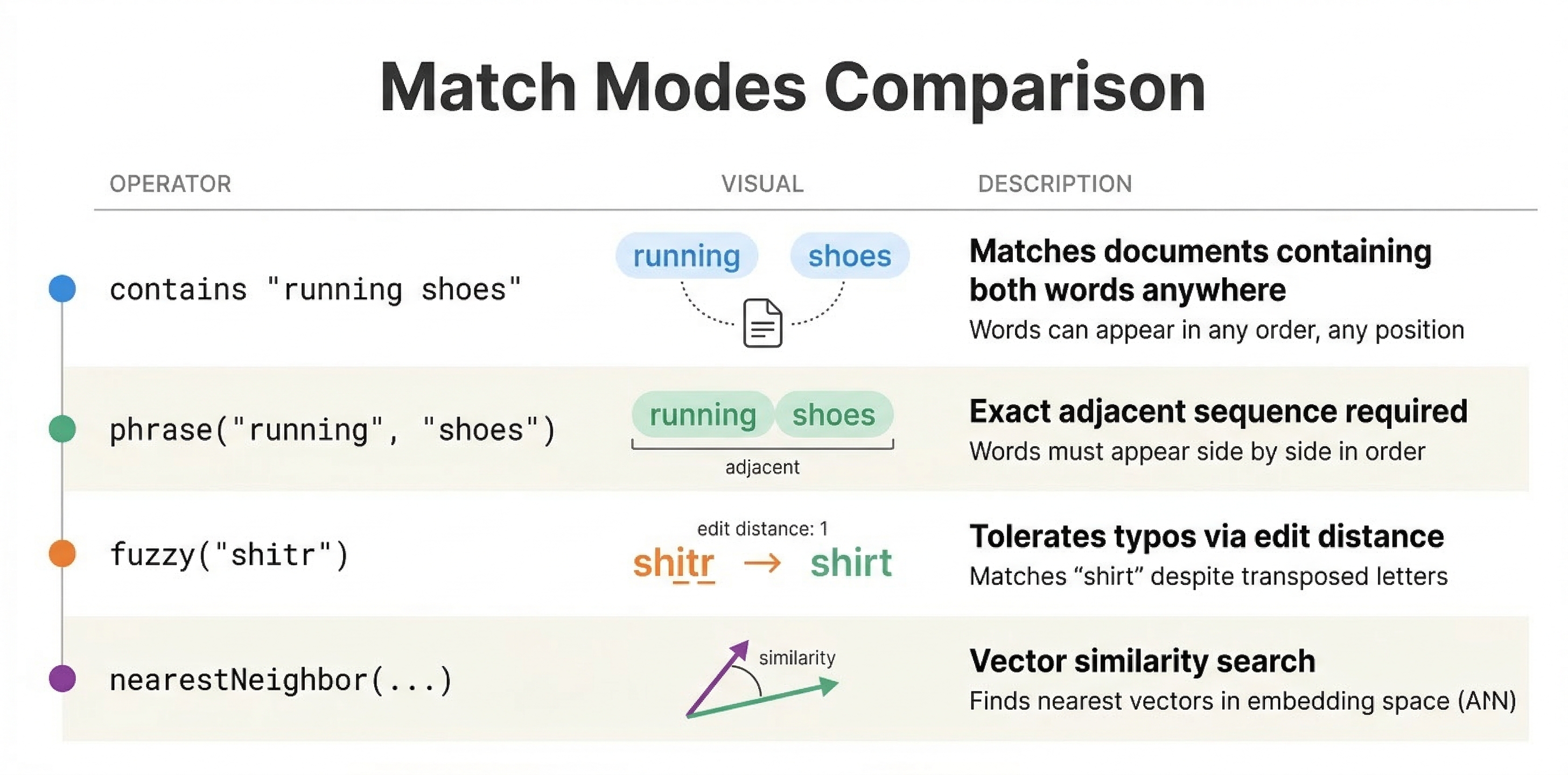
The contains operator is how you search text fields. When you write field contains "term", Vespa searches the field for documents containing that term.
select * from news where title contains "technology"
This finds all news documents where the "title" contains "technology". The contains operator uses the text index you created when you marked the field with indexing: index in your schema.
You can also search multiple fields:
select * from news where title contains "technology" or body contains "technology"
This matches documents where either the "title" or "body" contains "technology". The or operator tells Vespa that a document matches if any of those conditions is true.
Similarly, you can also use and instead of or:
select * from news where default contains "music" and default contains "festival"
The default fieldset is the one you defined in your schema (remember from the previous chapter?). This query finds documents containing both "music" and "festival" anywhere in their searchable text.
Filtering data on Structured Fields
For exact matches on structured fields, you use comparison operators just like in SQL.
select * from product where year = 2023
This matches products from 2023. You can use standard comparison operators like =, !=, <, <=, >, and >=.
You can also use ranges:
select * from product where price >= 100 and price <= 500
This finds products priced between 100 and 500. But wait, there is also the range function:
select * from product where range(price, 100, 500)
This is equivalent to above.
The in operator lets you match against multiple values:
select * from product where category in ("electronics", "computers", "phones")
This is more efficient than writing multiple or conditions. Vespa optimizes in queries to avoid evaluating each condition separately.
Combining Conditions
You can build complex filters by combining conditions with and and or. Parentheses control precedence just like in programming languages.
select * from product where (category contains "electronics" and price < 1000) or (category contains "books" and price < 50)
This finds electronics priced under 1000 or books under 50. The parentheses group conditions so the logic works correctly.
Without parentheses:
select * from product where category contains "electronics" and price < 1000 or category contains "books"
This is the same as (category contains "electronics" and price < 1000) or (category contains "books"), which matches all books regardless of price. Understanding precedence will help you write better queries.
Sorting with order by
By default, Vespa returns results sorted by relevance score (highest first). But sometimes you want to sort by a specific field instead. The order by clause works like it does in SQL.
select * from product where category contains "electronics" order by price asc
This returns electronics sorted by price from lowest to highest. Use desc for the opposite direction:
select * from article where true order by published_date desc
This returns all articles sorted by most recent first. You can also sort by multiple fields:
select * from product where true order by category asc, price desc
This groups products by category alphabetically, and within each category sorts by price from highest to lowest. A bit complicated but once we have real data to query, it will be much easier to understand.
Note: When you use order by, Vespa sorts results by the field you specified and ignores the relevance score from your rank profile. This makes sense for use cases like "show me the cheapest products" or "show me the latest articles", where you want a deterministic order based on data rather than relevance. If you want relevance-based ordering (which is the default), simply omit the order by clause and let your rank profile handle it. We will learn more about rank profiles in a later module.
Also, only fields marked as attribute in your schema can be used in order by. This is because sorting requires fast access to field values across all matching documents, and attributes are stored in memory. If you try to sort by a field that is not an attribute, you will get an error.
Limiting Results
You can control how many results to return directly in the YQL query using limit and offset:
select * from product where true order by price asc limit 20
This returns only the first 20 results. You can combine it with offset to paginate:
select * from product where true order by price asc limit 20 offset 40
This skips the first 40 results and returns the next 20, giving you "page 3" of results with 20 items per page.
Advanced Text Operators
YQL offers several advanced text search operators other than contains.
The phrase operator matches exact phrases:
select * from docs where text contains phrase("machine learning")
This finds documents containing "machine learning" as a phrase, not just documents containing both words separately. Phrase search uses the positional information in text indexes.
The near and onear operators match terms within a specified distance:
select * from docs where text contains ({distance: 5}near("data", "science"))
This matches documents where "data" and "science" appear within 5 words of each other in any order. The {distance: 5} annotation controls the maximum gap; without it, the default distance is 2. If the order of words matters, you can use the onear operator.
The matches operator does pattern matching:
select * from docs where title matches ".*[Pp]ython.*"
This uses regular expressions to find titles containing "Python" or "python". Pattern matching is powerful but can be expensive, so use it wisely.
weakAnd
When a user types a long query like "best laptop for programming", you usually want to find documents that match as many of those words as possible, but you may not need all of them. and would miss documents that contain four out of five words. or would return too many documents with low matches. weakAnd sits in the middle. It works like an or but is much smarter about which documents it actually evaluates.
select * from product where default contains "best" or default contains "laptop" or default contains "programming"
This plain or query would evaluate every document matching any single term, which could be millions. The weakAnd version is more efficient:
select * from docs where ({targetHits: 100}weakAnd(default contains "best", default contains "laptop", default contains "programming"))
The targetHits parameter tells Vespa roughly how many candidate documents you want. weakAnd uses an internal scoring threshold to skip documents that cannot possibly rank high enough to make it into the result set. It dynamically raises this threshold as it finds better matches, so it evaluates far fewer documents than a plain or while still finding the best results. You can think of this as a "smart or".
You will rarely need to write weakAnd directly because the userInput function (covered next) uses it by default. But understanding what it does helps you reason about query performance and result quality.
User Input Queries: userInput
When building search applications, you often want to take a user's text input and search for it. The userInput function handles this:
select * from docs where userInput(@query)
The @query is a parameter reference. You pass the actual search text as a separate query parameter called query, and Vespa substitutes it in at query time. By default, userInput uses the weakAnd operator we just discussed, which efficiently finds documents matching any of the query terms and ranks them by relevance. It searches the default fieldset defined in your schema.
You can also control which fields to search using "annotations":
select * from docs where {defaultIndex: "title"}userInput(@query)
This will search the "title" field instead of the default fieldset. Annotations in YQL use the curly brace syntax {key: value} placed before the operator they modify. You will see this pattern throughout YQL.
You can also change the grammar that userInput uses to parse the text. The default is weakAnd, but you can switch to other modes:
select * from docs where {grammar: "all"}userInput(@query)
With grammar: "all", every word in the user's input is required (like an and). With grammar: "any", any word can match (like a plain or). The default weakAnd grammar is usually the best choice for search applications because it balances both recall and efficiency of the search results.
Vector Search with nearestNeighbor
For vector search, you use the nearestNeighbor operator:
select * from docs where {targetHits: 10}nearestNeighbor(embedding, query_embedding)
This finds the 10 documents whose embedding field is closest to query_embedding using the distance metric configured in your schema. The targetHits parameter tells Vespa how many results you want from the approximate nearest neighbor search.
Vector search can also be combined with filters:
select * from docs where {targetHits: 10}nearestNeighbor(embedding, query_embedding) and category contains "science"
This performs vector search but only considers documents in the "science" category.
Hybrid Search Queries
Hybrid search combines multiple retrieval methods into a single query. A common pattern is combining text search with vector search:
select * from docs where
  ({targetHits: 10}nearestNeighbor(title_embedding, query_embedding)) or
  userInput(@query)
This searches using both semantic similarity (via vector embeddings) and keyword matching (via userInput). Documents can match through either path, and the ranking function determines which results rank highest.
You can make hybrid queries more sophisticated:
select * from docs where
  (({targetHits: 10}nearestNeighbor(title_embedding, query_embedding)) or
   userInput(@query)) and
  published_date > 1609459200
This combines semantic and keyword search while filtering to only recent documents. The ability to mix different retrieval methods in one query is a key Vespa strength.
The rank() Operator
Some parts of your query are there to find documents (retrieval), and other parts are there to influence how those documents are scored (ranking). The rank() operator gives you control over this.
rank() takes two or more arguments. The first argument determines which documents are retrieved. The remaining arguments do not affect which documents match, but they make their signals available to the ranking function.
select * from docs where rank(userInput(@query), {targetHits: 100}nearestNeighbor(embedding, query_embedding))
In this example, only the userInput(@query) part determines which documents are retrieved. The nearestNeighbor part does not filter anything, but its closeness score is available to the ranking function. This is different from using or, where both sides contribute to retrieval.
Why would someone do this? Consider a scenario where you want to retrieve documents using keyword search (because it is precise), but you also want your ranking function to consider the semantic similarity score. With rank(), you get exactly that! The keyword search controls what comes back, and the vector similarity makes your search results better.
You can also use it the other way around:
select * from docs where rank({targetHits: 100}nearestNeighbor(embedding, query_embedding), userInput(@query))
Here, vector search does the retrieval, but BM25 scores from userInput are available for ranking. The ranking function can then combine both signals to produce a final score.
This is an advanced pattern that becomes very useful when you start building sophisticated ranking profiles in later modules. For now, just understand that rank() separates "what to retrieve" from "what to score with".
Query Parameters
YQL is only part of a query. You also specify parameters that control behavior.
-
hits sets how many results to return. The default is 10. Use
hits=50to get 50 results. -
offset controls pagination. Use
offset=20to skip the first 20 results, useful for implementing "next page" functionality. Note that large offsets can be expensive because Vespa still has to find and sort those results internally. -
timeout specifies how long Vespa should spend on the query before returning results. Use
timeout=500msto set a 500 millisecond timeout. If the query does not complete in time, Vespa returns whatever results it has found so far with an indicator that the query was incomplete. -
ranking selects which ranking profile to use. You specify
ranking=my_ranking_profileto use a custom ranking function defined in your schema. Different ranking profiles can produce very different result orderings for the same query. -
ranking.features lets you pass features to the ranking function. For example,
ranking.features.query(user_profile)={{cat:tech}:0.8}passes a user preference as a feature that the ranking function can use.
Running Queries with Different Tools
You can execute YQL queries using several tools: the Vespa CLI, the HTTP API, or PyVespa.
Vespa CLI
The Vespa CLI provides the simplest way to run queries during development:
vespa query "select * from music where album contains 'love'"
You can add parameters:
vespa query "select * from music where true" \
  "hits=20" \
  "ranking=custom_profile"
HTTP API
The HTTP query API is what all tools use underneath. You can call it directly with curl:
curl "http://localhost:8080/search/?yql=select%20*%20from%20music%20where%20album%20contains%20'love'&hits=10"
The YQL query goes in the yql parameter, URL-encoded. Other parameters like hits and ranking are additional query string parameters.
You can also POST queries as JSON:
curl -X POST http://localhost:8080/search/ \
  -H "Content-Type: application/json" \
  -d '{
    "yql": "select * from music where album contains '\''love'\''",
    "hits": 10
  }'
POST requests are cleaner for complex queries and avoid URL encoding issues.
Python API
PyVespa lets you construct and run queries from Python:
from vespa.application import Vespa

app = Vespa(url="http://localhost:8080")

response = app.query(
    yql="select * from music where album contains 'love'",
    hits=10,
    ranking="my_ranking_profile"
)

for hit in response.hits:
    print(hit['fields']['title'])
PyVespa handles the HTTP communication and parses responses into Python objects. This is convenient when building applications or analyzing data in notebooks.
Query Parameter Substitution
For complex queries, you can use parameter substitution instead of embedding values in the YQL string. This makes queries easier to construct and more secure:
app.query(
    yql="select * from product where price < @max_price",
    max_price=100
)
The @max_price in the YQL is replaced with the value you provide. This avoids having to build the YQL string dynamically and prevents injection issues.
Practical Query Examples
Let's look at some real-world query patterns.
- E-commerce product search:
select title, price, image_url from product
where userInput(@query) and price < @max_price and in_stock = true
This searches product text, filters by price and availability, and returns display fields.
- News article search with recency:
select title, summary, published_date from article
where userInput(@query) and published_date > @min_date
order by published_date desc
This searches articles and filters by date, returning recent results first.
- Semantic search with filters:
select * from docs where
  {targetHits: 20}nearestNeighbor(embedding, query_embedding) and
  category in ("tech", "science") and
  published_date > 1609459200
This does vector search within specific categories and a date range.
- Recommendation with personalization:
The YQL itself can be simple, with the personalization handled through query parameters:
select * from product where true
You would send this along with parameters ranking=personalized and ranking.features.query(user_id)=user123 to use a personalized ranking profile. The rank profile receives the user_id as a feature and uses it to score products based on that user's preferences. We will explore this pattern in the ranking module.
Next Steps
You now understand how to query Vespa using YQL. You can construct simple and complex queries, combine different search methods, and control query behavior with parameters. The next chapter explores the result format and how to work with query responses.
For complete YQL syntax and all available operators, see the YQL reference and the query language guide.