Document Schema
The structure of your data is defined by "schema" in Vespa. Schema tells Vespa the fields your documents have, the types of the field (number, string, etc) and it also tells Vespa how these fields should be indexed and stored. The schema is the most important part of the application. It is the sole component that determines what you can do with your data during feeding, querying and ranking. Besides fields, schemas also contain fieldsets, rank profiles, and other configuration - we will introduce fieldsets in this chapter and cover rank profiles in a later one.
In this chapter, we will look at some sample schemas and will try to understand a few different field types and indexing options. We will also learn how to create schemas according to our application's needs. By the end of the chapter you should be able to create schemas for your own applications and use cases.
What is a Schema?
A schema is a definition of a document type. It specifies the name of the document type, the fields that documents of that type contain, and how those fields should be processed. In Vespa, schemas are defined in files with the .sd extension, which stands for "schema definition". These files live in the schemas/ directory of your application package.
Whether you are running Vespa locally, self-hosted or using Vespa Cloud, you will need schemas and this is where they will be stored in a Vespa application. The only difference is how you deploy the application package, which will be covered in a later module. When we deploy an application, the schema files are read by Vespa and it creates internal data structures which are required to store and index your documents. Schema is basically telling Vespa what your data looks like and how it should be handled.
Note that the .sd filename must match the schema name. In this case, the file should be named music.sd.
Let's take a look at a sample schema:
schema music {
    document music {
        field artist type string {
            indexing: summary | index
        }
        field album type string {
            indexing: summary | index
        }
        field year type int {
            indexing: summary | attribute
        }
    }

    fieldset default {
        fields: artist, album
    }
}
This schema defines a document type called "music" with three fields: artist, album and year. A "document type" is simply the blueprint for a category of documents - here, every music document will have these three fields. The fields artist and album are marked as string and year is integer. We also see a new keyword called "indexing". The "indexing" statements tell Vespa how to handle these fields. Let's take a look at what summary, index, and attribute mean a little bit later. There is also a fieldset that groups artist and album together for searching, which we will also explain later in this chapter.
Take note that the schema is organized into two levels of nesting. The outer schema block acts as the main container, holding everything like rank profiles and fieldsets. The inner document block is the place where you specify the actual fields that become part of your data. Remember, fields can also be defined outside the document block but still within the schema block, and these are known as synthetic fields (also called schema-level fields). Synthetic fields are not fed directly - they derive their values from other fields. A common example is feeding a text field and deriving an embedding field from it. We'll explore this distinction a little later.
Field Types
Vespa supports several field types to handle different kinds of data. We must always choose the right type for fields as it will eventually affect how we can query and rank our documents. There are many types supported by Vespa. Here we will take a look at a few major types.
String
The most basic and simple type is string. String fields store text data. Surprise surprise! You can use string type for all kinds of text: whether it's small, short identifiers or very long documents. String field type supports full-text indexing which is useful for keyword search and it also supports attribute storage which can be used for exact matching and filtering on the data. We'll talk about the important distinction between index and attribute later in this chapter.
field title type string {
    indexing: summary | index
}
Numeric Types
Numeric fields include int, long, float, and double. These are for numbers that you want to filter on, sort by, or use in ranking expressions.
field price type float {
    indexing: summary | attribute
}
Boolean
Boolean fields use the bool type and store true or false values. These are useful for flags such as "in stock" or "featured" that you want to filter by.
field in_stock type bool {
    indexing: summary | attribute
}
Tensor
Tensor fields store arrays of numbers, which can be one-dimensional vectors or multi-dimensional arrays. You can use this field type to store text embeddings (or any other vector or array of numbers). We will cover tensors in depth in the vector search module.
field embedding type tensor<float>(x[384]) {
    indexing: summary | attribute | index
    attribute {
        distance-metric: angular
    }
}
tensor<float>(x[384]) means a one-dimensional tensor of 384 float values. The dimension name x is arbitrary, and the number in brackets is the size. For approximate nearest neighbor search, you mark the field with both attribute and index, and specify a distance metric.
Tensors can also have mapped dimensions, which are useful when the number of elements varies per document. For example, a document with multiple text chunks, each with its own embedding:
field chunk_embeddings type tensor<float>(chunk{}, x[384]) {
    indexing: summary | attribute | index
    attribute {
        distance-metric: angular
    }
}
Here, chunk{} is a mapped dimension (note the curly braces instead of a fixed size), meaning each document can have a different number of chunks.
Array
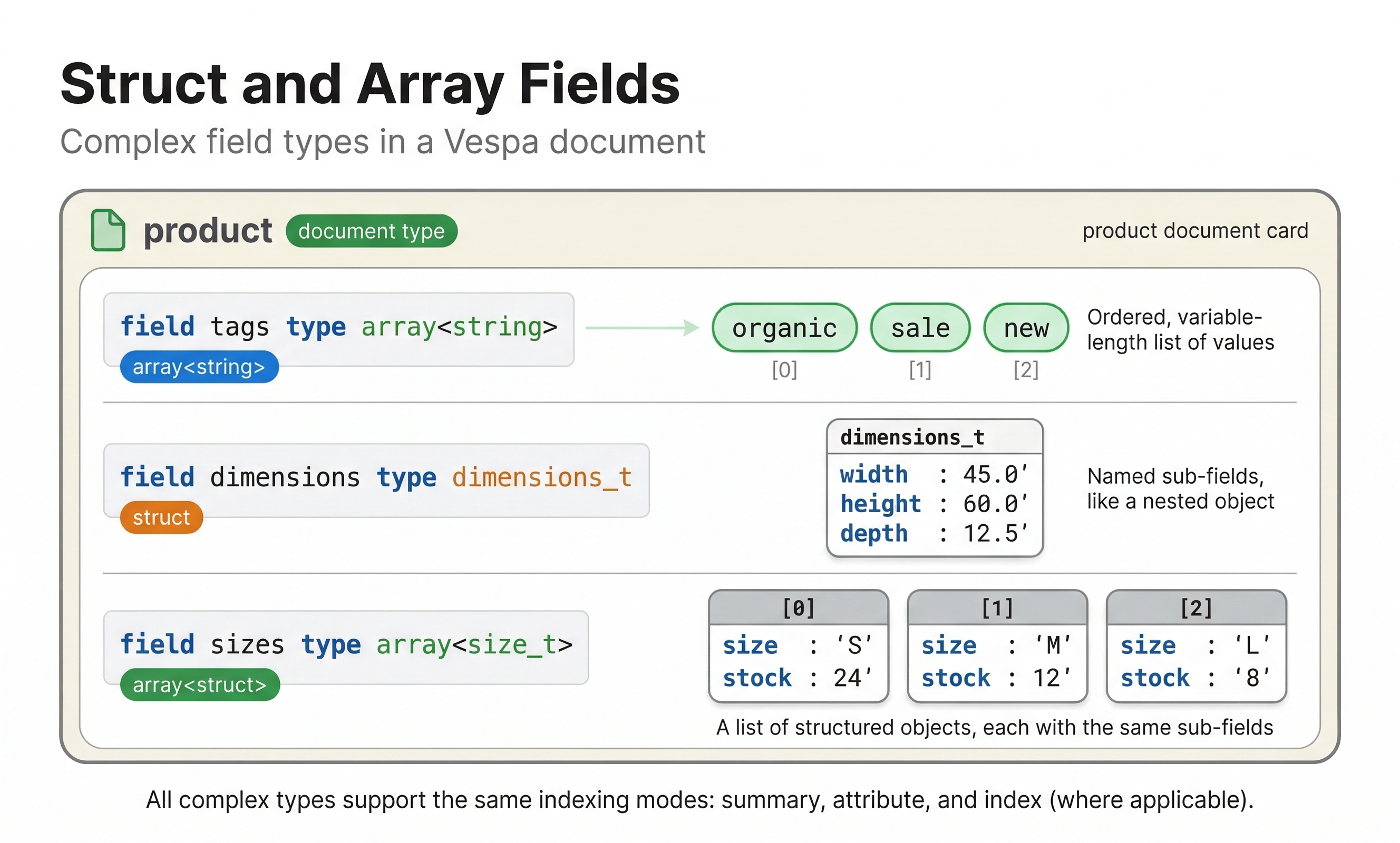
Array fields let you store multiple values of the same type in a single field. For example, you might have an array of strings for product tags or an array of integers for category IDs or keywords for a product or item.
field tags type array<string> {
    indexing: summary | attribute
}
Weightedset
A weighted set is like an array, but each item has a number that shows how important it is. This is helpful when you want to give different scores to values. For example, if you have a list of tags, some tags might be more important than others.
field tags type weightedset<string> {
    indexing: summary | attribute
}
When feeding data, you provide the values as key-weight pairs:
{
    "tags": {
        "technology": 10,
        "search": 20,
        "vespa": 30
    }
}
The weights can then be used during ranking to give more or less importance to a document.
Map
Map fields are like dictionaries and store key-value pairs. For instance, you might have a map of language codes to translated titles. Maps use syntax like this:
field lang_code type map<string, string> {
    indexing: summary
}
Struct
Struct fields are a great way to organize complex data by giving each part a specific name. For example, if you want to store an address that includes street, city, and postal code all together, you can create a struct for that. You define these structs inside the document block, right before the fields that will use them, making your data more structured and easy to manage.
document product {
    struct address {
        field street type string {}
        field city type string {}
        field zip type string {}
    }

    field office_address type address {
        indexing: summary
    }

    field branch_addresses type array<address> {
        indexing: summary
        struct-field city {
            indexing: attribute
        }
    }
}
Notice that you can use the struct-field keyword within the parent field to make individual sub-fields available as attributes for filtering or sorting. In the example above, we made the city sub-field of branch_addresses an attribute so we can filter on it.
Position
The position type represents a geographical location using latitude and longitude, suitable for geo-search scenarios such as "find restaurants near me":
field location type position {
    indexing: summary | attribute
}
When feeding, you provide latitude and longitude as an object:
{
    "location": { "lat": 37.4181, "lng": -122.0256 }
}
At query time, you can filter by distance and rank by proximity using built-in functions like geoLocation() and closeness(location). See the geo search documentation for the full details.
Reference
A reference field points to documents of another type. This is how you create relationships between documents, like a product referencing a brand document. We will cover references in more detail later in this chapter.
field brand_ref type reference<brand> {
    indexing: attribute
}
Choose the right field type
Selecting the appropriate data type for each field depends on the kind of data you're storing and its intended use. Searchable text should be placed in string fields. Numeric types are suitable for filtering and sorting numbers. Embeddings are stored in tensor fields. Complex structured data can be stored using structs or maps. Location information should be stored in the position type. For weighted multi-value fields, use weightedsets.
Indexing Options: index, attribute, and summary
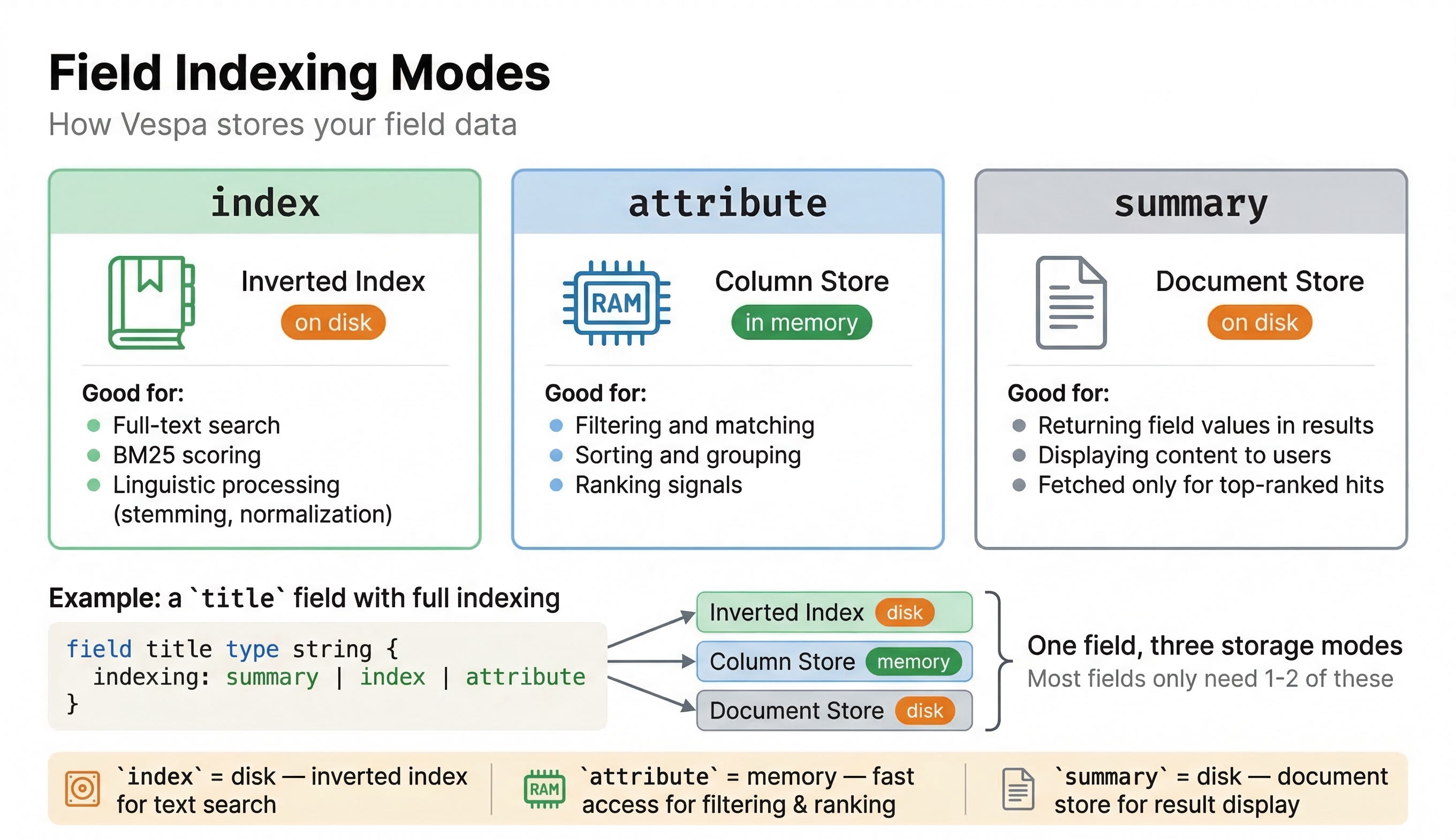
For each field in your schema, you need to tell Vespa how to process and store it. This is done through the indexing statement. There are three main indexing modes, and you can combine them using the pipe symbol |.
summary
summary means the field value can be returned in search results. If it's returned in search results, you can show it to the end user or a part of it. When someone runs a query, Vespa will return the documents. Any field marked with summary will be included in the response. If you do not mark a field as summary, it will not appear in the search results even though it might be indexed for searching (depending on ranking profile). Think of summary as "should this be visible in results?" If you are building a product search and you want users to see the product name, price, and image URL, those fields need to be summaries.
index
This mode creates a full-text index for string fields or vector indices for tensor fields. For string fields, Vespa creates an inverted index that maps words to the documents containing them, letting you search for documents containing specific words. For tensor fields, index creates an HNSW (Hierarchical Navigable Small World) index for approximate nearest neighbor search. This makes vector search super fast. If you only mark a tensor as attribute without index, Vespa will do exact nearest neighbor search, which is accurate but will be very slow for large datasets.
Inverted index structures are mostly kept on disk and paged into memory as needed. This makes them efficient for large text corpus where keeping everything in memory would be impractical. Note that the HNSW index for tensors is kept in memory.
attribute
The attribute mode stores the field value in an in-memory column store. This makes the field available for filtering, sorting, grouping, and use in ranking expressions. When you want to filter by price range, sort by date, or use a popularity score in ranking, those fields need to be attributes.
Attributes live in memory, which makes them very fast to access but limits how much data you can store this way. You use attributes for structured data that you need to access quickly during query processing. Common examples include numeric IDs, categories, ratings, timestamps, and any other structured metadata.
Combining Modes
You can combine the modes described above to get the behavior you need. For example, a field marked indexing: summary | index can be searched with full-text queries and will appear in search results. A field marked indexing: summary | attribute appears in results and can be used for filtering and ranking, but is not full-text searchable. A field with all three indexing: summary | index | attribute has all the features but is going to use more resources.
Here is a quick reference for common combinations:
| Indexing | Use Case |
|---|---|
summary | Display only (e.g., image URL) |
summary | attribute | Display + filter/sort/rank (e.g., price, rating) |
summary | index | Display + text search (e.g., description) |
summary | index | attribute | Display + text search + use in ranking (e.g., title) |
attribute | index | Vector search with HNSW (e.g., embeddings) |
attribute | Filter/sort only, not in results (e.g., internal score) |
Match Modes for String Fields
When marking a string field with index, Vespa automatically performs full linguistic processing, including tokenization, normalization, and stemming. This works well for natural language text, but occasionally you may require different matching behavior. The match property allows you to customize this.
The default match mode for indexed string fields is text, which gives you full-text search with stemming. This means a search for "running" will also match "run" and "runs". For many text fields, such as titles and descriptions, this is exactly what you want.
If you require matching of whole words without stemming, use match: word. This treats the field value as individual tokens but without linguistic processing, so "run" matches only "run" and not "running". Note that word is already the default for attribute-only string fields, so you only need to set it explicitly on index fields:
field category type string {
    indexing: summary | attribute
    match: word
}
For fields where the entire field value must match as one string (like a SKU or product code), use match: exact. Unlike word, which still tokenizes on whitespace, exact treats the whole value as a single token:
field sku type string {
    indexing: summary | attribute
    match: exact
}
Additionally, match: gram enables substring-style matching by dividing text into character-level n-gram tokens. For example, with gram-size: 3, the word "vespa" produces tokens "ves", "esp", "spa". This is especially helpful for CJK languages where words are not separated by spaces:
field name type string {
    indexing: index | summary
    match {
        gram
        gram-size: 3
    }
}
An important rule to remember is that string fields with only attribute (without index) support exact, word, and prefix matches, but do not support text matching. For full-text search, the index mode is necessary.
Controlling Stemming and Normalization
When using match: text for indexed string fields, Vespa applies linguistic processing to both the content and query terms, including stemming and normalization, which generally makes searches more tolerant. However, for fields like product codes, technical IDs, or specific terms where exact matching is crucial, you can disable these features individually.
field product_code type string {
    indexing: summary | index
    stemming: none
    normalizing: none
}
With stemming: none, "running" will only match "running", not "run" or "runs". With normalizing: none, "café" (with an accent) will not match "cafe" (without an accent). You can set these independently, so you can keep normalization while disabling stemming, or vice versa.
Bolding
Bolding is a great way to show text snippets in search results to the end user. You can enable bolding on text fields and Vespa will wrap matching query terms in <hi> tags in the summary that is returned. This is particularly useful if you are creating a user interface to show the results to the user:
field title type string {
    indexing: summary | index
    bolding: on
}
When a user searches for "python" and a document title is "Getting Started with Python", the result would return as "Getting Started with <hi>Python</hi>". For all the details on text matching, see the Vespa text matching documentation.
Fieldsets
Let's take a look at this scenario: you have a music catalog with separate fields for artist, album, and song title. When a user types "Beatles" in a search box, you want to search across all three fields. This is accomplished using fieldsets. A fieldset groups multiple fields together so you can search across all of them with a single query. Without fieldsets, you would need to construct a query that explicitly targets each field. With a fieldset, you simply search the fieldset and Vespa handles the rest. This is one of the most practical features of Vespa schemas, and it is something you will use in almost every application.
schema music {
    document music {
        field artist type string {
            indexing: summary | index
        }
        field album type string {
            indexing: summary | index
        }
        field title type string {
            indexing: summary | index
        }
    }

    fieldset default {
        fields: artist, album, title
    }
}
The fieldset named default has special significance. When you use userInput() in your queries (which is the recommended way to handle end-user search queries), it searches the default fieldset automatically. If you don't define a default fieldset, you need to specify which fields to search every time.
Fieldsets are declared outside the document block but inside the schema block. They don't create any additional index structures; they simply tell Vespa, "when I search this fieldset, search all these fields." Something to keep in mind: all string fields grouped in a fieldset should share the same match and linguistic processing settings, because the same query will be applied to all of them.
How Fields Are Stored and Used
Understanding Vespa's internal field storage helps you make informed schema design choices.
When you mark a field as index, Vespa creates on-disk index structures. For text fields, this results in an inverted index that maps words to the documents containing them. These indexes facilitate quick searches for specific terms. The core index data resides mainly on disk, with frequently accessed sections cached in memory.
Marking a field as attribute causes Vespa to store its values in-memory, using a column-oriented format. This arrangement stores all values for a field across documents contiguously in memory, enabling rapid filtering, sorting, or value retrieval during ranking. For numeric attributes, Vespa can process millions of values per second.
Some fields are both index and attribute. For instance, a text field used both for keyword searches and ranking expressions. The index supports search capabilities, while the attribute provides quick access to the field value for ranking.
Summary fields are stored in a document store on each content node. When results are returned, Vespa retrieves the summary data from this store. You can define various document summaries, each including different field subsets, allowing tailored responses for different query types.
Advanced Indexing Options
Beyond the basic index, attribute, and summary modes, there are some advanced options worth knowing about.
fast-search
For attribute fields, consider adding attribute: fast-search to create a B-tree index on the attribute values. This can make filtering by that attribute much quicker and easier. If you often filter by a category field, marking it with attribute: fast-search can greatly speed up your queries. Just keep in mind that this uses more memory, so it's best to apply it thoughtfully to the fields you use most for filtering. A good rule of thumb: use fast-search when the attribute field is searched without other query terms that could limit the result set, or when it can efficiently limit the total number of hits. See the practical search performance guide for more details.
field category type string {
    indexing: summary | attribute
    attribute: fast-search
}
paged
By default, attribute fields are stored entirely in memory, which makes them very fast but means they consume RAM proportional to the number of documents. For large fields that you need as attributes but do not access in every query, you can use attribute: paged to let Vespa keep the data on disk and page it into memory on demand:
field large_vector type tensor<float>(x[1024]) {
    indexing: attribute
    attribute: paged
}
This is particularly useful for large tensor fields or other attributes that would consume too much memory if kept entirely in RAM. The tradeoff is that accessing paged attributes is slower than accessing in-memory ones, but it lets you work with larger datasets without running out of memory. See the attribute documentation for details on when paging makes sense.
enable-bm25
For text fields with index, you can add index: enable-bm25 to enable BM25 ranking for that field. BM25 is a standard text relevance algorithm, and this option makes the necessary statistics available for computing BM25 scores during ranking. This is something you will use quite often when doing keyword-based search applications and also with hybrid-search applications. Note that without enable-bm25, Vespa uses NativeRank by default, which is more expensive to compute but often gives better precision.
field title type string {
    indexing: summary | index
    index: enable-bm25
}
Synthetic Fields
Fields defined outside the document block but inside the schema block are called synthetic fields (also known as schema-level fields). These are not part of the document type and cannot be fed directly. Instead, they derive their values from document fields using the input expression. This is useful when you want to index the same data in multiple ways:
schema product {
    document product {
        field title type string {
            indexing: summary | index
        }
    }

    field title_lowercase type string {
        indexing: input title | lowercase | summary
    }
}
Here, title_lowercase is a schema-level field that takes the value of title, lowercases it, and stores it as a separate summary. The input expression retrieves data from a document field. This is the only place where input is used; inside the document block, each field's indexing pipeline implicitly operates on its own incoming value from the feed.
Multiple Document Types
An application can have multiple schemas defining different document types. You might have a schema for products and another for categories and another for brands. Each goes in its own .sd file named after the schema.
Different document types can coexist in the same Vespa application, stored in the same or different content clusters depending on your configuration. You query them separately by specifying which document type to search.
Multiple document types let you model complex domains where different entities have different structures. An e-commerce app might have products, reviews, users, and orders as separate document types with appropriate fields for each.
Document References and Imported Fields
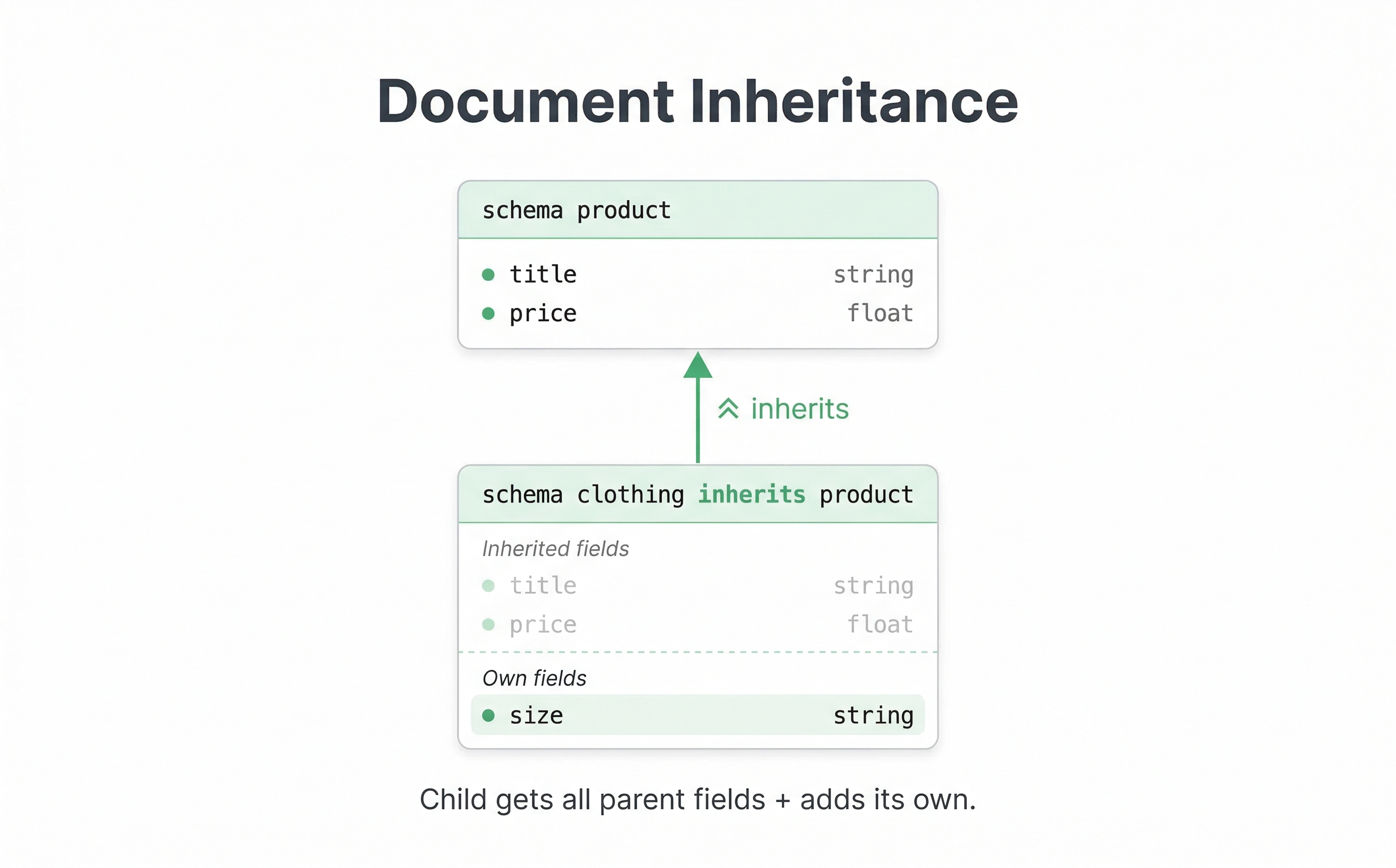
References create relationships between documents. If you have a product schema and a brand schema, the product can have a reference field pointing to its brand document. But the real power comes from importing fields from the referenced document so you can use them during queries and ranking.
Here is how it works. First, define the parent schema:
schema brand {
    document brand {
        field name type string {
            indexing: summary | attribute
        }
        field country type string {
            indexing: summary | attribute
        }
    }
}
Then, in the child schema, declare a reference field and import the fields you need:
schema product {
    document product {
        field title type string {
            indexing: summary | index
        }
        field brand_ref type reference<brand> {
            indexing: attribute
        }
    }

    import field brand_ref.name as brand_name {}
    import field brand_ref.country as brand_country {}
}
The import field statement goes outside the document block. The syntax is import field <reference_field>.<parent_field> as <local_name> {}. After importing, you can use brand_name and brand_country in your queries and ranking expressions as if they were regular fields on the product document.
When feeding a product document, you set the reference field to the full document ID of the brand:
{
    "brand_ref": "id:mynamespace:brand::nike"
}
This approach lets you keep data normalized and avoid duplicating brand information across thousands of product documents. If a brand name changes, you update it in one place and all products see the new value.
However, references come with trade-offs worth understanding. Parent documents are global (stored on all content nodes), the reference pointers are kept in memory, and only attribute fields can be imported from the parent. This means references add memory overhead. You should use them when the benefits of avoiding duplication genuinely outweigh the added complexity and memory cost. If your data is relatively static, denormalizing (copying brand fields directly into the product document) is often simpler.
Safe Schema Evolution
As your application grows, you might need to change your schema. Understanding what changes are safe and what changes require reindexing will save you from many bad surprises.
Adding new fields is straightforward and safe. You can add a field to your schema, redeploy the application, and start feeding documents with that field. Existing documents without the new field continue to work fine. You don't need to reindex existing documents unless you want to populate the new field.
Removing fields is also safe. If you remove a field from the schema and redeploy, Vespa stops indexing that field for new documents. The old data is cleaned up over time and won't cause problems.
Changing indexing modes is more involved. If you change a string field from attribute to index, or vice versa, Vespa needs to rebuild the indexes for that field. Vespa supports triggering reindexing for such changes, but for large datasets, this can take time. You can also handle it by adding a new field with the desired indexing mode and migrating data gradually.
Changing field types (like changing a field from string to int) is generally not supported as a live change. For type changes, you would typically add a new field with the new type, update your feeding pipeline, and phase out the old field.
Practical Schema Design Tips
When designing schemas, think about how you will query and rank your data. Fields you need to filter on should be attributes. Text you want to search should be indexed. Fields you want to return in results should be summaries.
-
Don't mark everything as an attribute. Attributes use memory, and memory is more expensive than disk. Only make fields attributes if you need to filter, sort, or use them in ranking. If a field only needs to appear in results,
summaryalone is enough. -
Use the
fast-searchattribute option selectively. It speeds up filtering but uses more memory. Apply it to fields that are frequently used in filters where the performance gain justifies the cost. -
For text fields, decide whether you need both full-text search (
index) and exact matching in ranking (attribute). Many text fields only need one or the other. A product description might only needindexfor searching, while a SKU might only needattributefor exact matching. -
Consider your data volume and query patterns when choosing types. If you have millions of documents with text fields, those fields should probably use
indexfor efficient search. If you have numeric metadata, attributes are the right choice. -
Always define a
defaultfieldset. It makes querying much easier and is expected by theuserInput()function that you will use in most search applications. -
Document references are useful for complex domains, but they add query complexity. Use them when you genuinely need to join data at query time. If data can be denormalized, that is often simpler.
Example: E-commerce Product Schema
Let's bring everything together with a realistic schema for an e-commerce product:
schema product {
    document product {
        # Attribute + fast-search for frequent ID lookups
        field product_id type string {
            indexing: summary | attribute
            attribute: fast-search
        }
        # Indexed for full-text search, BM25 enabled for relevance ranking
        field title type string {
            indexing: summary | index
            index: enable-bm25
        }
        # Indexed for text search (no BM25 - using nativeRank here)
        field description type string {
            indexing: summary | index
        }
        # Attribute for filtering by price range and sorting
        field price type float {
            indexing: summary | attribute
        }
        # Attribute + fast-search because we filter on category often
        field category type string {
            indexing: summary | attribute
            attribute: fast-search
        }
        # Attribute for filtering and sorting by brand
        field brand type string {
            indexing: summary | attribute
        }
        # Attribute + fast-search because nearly every query filters on stock
        field in_stock type bool {
            indexing: summary | attribute
            attribute: fast-search
        }
        # Attribute for sorting and use in ranking expressions
        field rating type float {
            indexing: summary | attribute
        }
        # Array attribute for multi-value tag filtering
        field tags type array<string> {
            indexing: summary | attribute
        }
        # Position type for geo-search (e.g., "near me" queries)
        field location type position {
            indexing: summary | attribute
        }
        # Summary-only - just needs to appear in results, no searching
        field image_url type string {
            indexing: summary
        }
        # Tensor with HNSW index for approximate nearest neighbor search
        field embedding type tensor<float>(x[384]) {
            indexing: summary | attribute | index
            attribute {
                distance-metric: angular
            }
        }
    }

    # Groups title and description so userInput() searches both automatically
    fieldset default {
        fields: title, description
    }
}
This schema shows the common patterns we have covered. The product_id is an attribute with fast-search because we might look up products by ID frequently. The title is indexed with BM25 enabled so we can do text search and rank by relevance. The description is indexed for text search as well. The price, rating, and brand are attributes for filtering and sorting. The category is an attribute with fast-search because we filter on categories often (attribute fields default to word matching, so exact category matching works out of the box). The in_stock flag is an attribute with fast-search because we almost always filter to show only available products. The tags field uses an array for multi-value storage. The location field uses the position type for potential geo-search. The image_url is only a summary since we just need to return it in results. The embedding field is a tensor with HNSW indexing for vector search. Finally, the default fieldset groups title and description so user search queries match across both fields automatically.
Next Steps
Now that you understand schemas and how to define document structure, the next chapter covers how to actually get data into Vespa. We will explore different methods for feeding documents and best practices for data ingestion.
Note that we have covered only the most useful stuff for schemas in this section. For complete details on schema syntax and all available options, see the Vespa schema reference and schema guide.