Setting up Vespa
Let's get Vespa running on your machine (or in the cloud)! There are several ways you can get started with Vespa depending on your needs, your preferred workflow and where you want to deploy your application. Whether you are a Python developer and want to prototype quickly in a Jupyter notebook, someone who prefers command line tools or a team which is preparing to deploy to production, Vespa offers an approach that fits all your needs.
In this chapter, we will walk through the main setup options. You will learn how to run Vespa locally for development using Docker, Vespa CLI, PyVespa if you prefer Python, and Vespa Cloud for when you need a production ready, fully managed system.
Understanding Your Options
There are three main tools you will use when working with Vespa, and each serves a different purpose in your workflow.
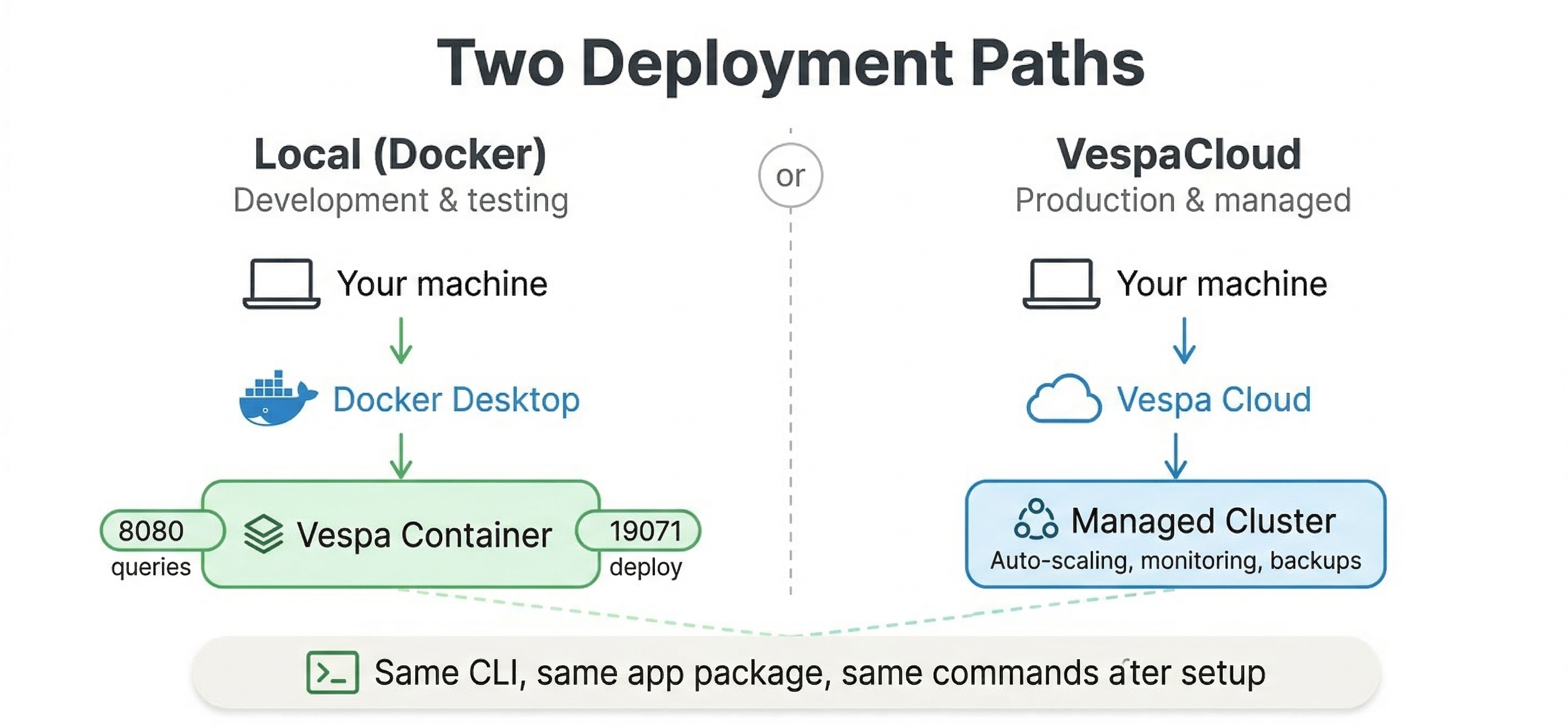
The first is the Vespa Docker image, which lets you run a complete Vespa instance on your local machine. This is the quickest way to get started if you want to experiment with Vespa, develop your application, or run tests before deploying to production. The Docker image contains everything you need: the config server that manages your application, the container layer that handles queries, and the content nodes that store and search your data. When you run Vespa in Docker, you get a real Vespa cluster running on localhost, and you can interact with it exactly as you would with a production system.
The second tool is the Vespa CLI, a command-line interface that helps you deploy applications, check status, run queries, and manage both local and cloud deployments. The CLI works whether you are targeting a local Docker instance or Vespa Cloud. It handles tasks like packaging your application, deploying it, feeding documents, and running queries. Once you have the CLI installed, you use the same commands for local development and cloud deployments, which makes it easy to move between environments.
The third tool is PyVespa, a Python library that brings Vespa functionality into Python notebooks and scripts. PyVespa is particularly useful if you are a data scientist or machine learning engineer who works primarily in Python. It lets you define schemas, deploy applications, feed data, run queries, and analyze results all from Python code. PyVespa can manage a local Docker instance for you automatically, or it can connect to Vespa Cloud. This makes it great for rapid prototyping and experimentation.
Running Vespa Locally with Docker
Let's start by getting Vespa running on your local machine using Docker. This is the foundation for local development regardless of whether you use the CLI or PyVespa later.
Before you begin, make sure you have Docker or Podman installed and running on your machine. Vespa works with either one. You will also need at least 4 GB of RAM dedicated to your container runtime. If you have less than this, Vespa may run into memory issues or fail to start.
To start a Vespa container, open your terminal and run this command:
docker run --detach --name vespa --hostname vespa-container \
  --publish 8080:8080 --publish 19071:19071 \
  vespaengine/vespa
If you prefer Podman, just replace docker with podman in the command. The command pulls the official Vespa image from Docker Hub and starts a container named "vespa". The --detach flag runs it in the background. The two --publish flags expose ports on your local machine. Port 8080 is where you will send queries and feed documents. Port 19071 is where the config server listens for application deployments.
After you run this command, Docker will download the Vespa image if you don't already have it. This might take a few minutes the first time. Once the download completes and the container starts, Vespa begins initializing its services inside the container. This initialization takes some time because Vespa needs to start the config server, the container services, and the content nodes.
To check if Vespa is ready, you can look at the container logs:
docker logs vespa --follow
Watch the logs until you see messages indicating that services have started. You will see log lines from different components as they come online. When you see messages about the container being available and the config server being ready, Vespa should be accepting requests.
You can also check the status by making a request to the config server health endpoint:
curl http://localhost:19071/state/v1/health
When Vespa is ready, this endpoint returns a response indicating that the service is up. Once you get a successful response, you have a working Vespa instance running locally.
At this point, Vespa is running but it doesn't have an application deployed yet. An application in Vespa terms is a package containing your schemas, ranking profiles, and configuration files. We will cover how to create and deploy applications in the next chapters, but for now you have the foundation in place.
Installing the Vespa CLI
The Vespa CLI makes it easy to manage applications from the command line. Let's get it installed so you can use it for deployments and queries.
If you are on macOS or Linux and have Homebrew installed, you can install the CLI with:
brew install vespa-cli
Alternatively, you can download the CLI directly from the Vespa GitHub releases page. Go to the releases page, find the latest version, and download the binary for your operating system. After downloading, make the binary executable and move it to a directory in your PATH so you can run it from anywhere.
Once installed, verify it works by running:
vespa version
This should print the version of the Vespa CLI you installed. Now you have the CLI ready to use.
The CLI has commands for different tasks. The vespa deploy command deploys an application package to Vespa. The vespa query command lets you send queries. The vespa document command handles feeding and removing documents. The vespa status command checks whether your deployment is ready. You will use these commands throughout this course as we build applications.
One useful feature of the CLI is that it works with both local and cloud deployments. When you deploy to localhost, the CLI knows to target your local Docker instance on port 8080. When you deploy to Vespa Cloud, you configure it with your cloud credentials and tenant name, and the same commands work but target the cloud instead. This consistency makes it easy to develop locally and deploy to the cloud without changing your workflow.
Working with PyVespa
If you are a Python developer or you prefer working in Jupyter notebooks, PyVespa provides a Python-first way to interact with Vespa. PyVespa wraps Vespa's functionality in Python classes and methods, letting you define applications, deploy them, feed data, and run queries all from Python code.
To install PyVespa, use pip:
pip install pyvespa
PyVespa requires Python 3.10 or later. Once installed, you can import it in your Python scripts or notebooks.
One of PyVespa's convenient features is that it can manage a local Docker instance for you automatically. When you deploy an application using PyVespa's VespaDocker class, it connects to your local Docker daemon and starts a Vespa container if one isn't already running. This is perfect for quick prototyping in a notebook where you want to define your schema, deploy it, feed some data, and run queries all in one session.
Here is a simple example of how you would use PyVespa to deploy an application locally:
from vespa.deployment import VespaDocker
from vespa.package import ApplicationPackage

# Define your application package (we'll learn more about this later)
app_package = ApplicationPackage(name="myapp")

# Deploy to local Docker
vespa_docker = VespaDocker()
app = vespa_docker.deploy(application_package=app_package)
When you run this code, PyVespa creates a Docker container running Vespa, deploys your application package to it, and returns an application object you can use to feed data and run queries. All of this happens without leaving your Python environment.
PyVespa also works with Vespa Cloud. Instead of using VespaDocker, you use the VespaCloud class and provide your cloud credentials. The rest of your code stays largely the same. This makes it easy to develop and test locally, then switch to the cloud for production or larger experiments without rewriting your application code.
The PyVespa documentation at https://vespa-engine.github.io/pyvespa/ provides detailed examples and tutorials. If you plan to use Python as your primary way of interacting with Vespa, this library will save you time and make your workflow smoother.
Deploying to Vespa Cloud
While local development is great for building and testing, eventually you will want to deploy to production or work with larger datasets than your laptop can handle. This is where Vespa Cloud comes in. Vespa Cloud is a fully managed service where you don't have to worry about infrastructure, scaling, or operations. You define your application and Vespa Cloud handles the rest.
To get started with Vespa Cloud, first go to https://console.vespa-cloud.com and create an account. You will create a tenant, which is your organization's space in Vespa Cloud. Within your tenant, you can create multiple applications.
After creating your tenant, you need to install the Vespa CLI if you haven't already. The CLI is how you will deploy applications to the cloud. You also need to configure the CLI with your tenant name and set up security certificates for authentication.
The Vespa Cloud documentation at https://cloud.vespa.ai/en/ provides a detailed getting started guide that walks you through creating your tenant, setting up certificates, and deploying your first application. The key difference between cloud and local deployments is that you need to provide your tenant and application names, and you need the security certificate for data plane access.
Once configured, deploying to Vespa Cloud uses the same vespa deploy command you use locally, but you specify the cloud environment. Vespa Cloud has two main environments: dev and prod. The dev environment is for development and testing, and deployments are free. It automatically removes applications after 14 days of inactivity, though you can extend this from the console. The prod environment is for production workloads and scales according to your needs.
When you deploy to Vespa Cloud, the first deployment takes a few minutes while Vespa provisions nodes for your application. After that, subsequent deployments are faster because the infrastructure is already running. You can watch the deployment progress in the Vespa Cloud console, which shows you when nodes are ready and when your application is live.
If you are using PyVespa, you can deploy to Vespa Cloud with the VespaCloud class instead of VespaDocker. You provide your tenant, application name, and key file, and PyVespa handles the deployment to the cloud just like it handles local deployments.
Choosing Your Setup Path
So which approach should you use? The answer depends on your workflow and goals.
If you are just starting to learn Vespa or you want to experiment with features, start with Docker locally. Use either the CLI or PyVespa depending on whether you prefer command-line tools or Python notebooks. The local setup gives you a real Vespa instance to work with, and everything runs on your machine with no external dependencies.
If you are building a prototype or doing machine learning experiments with ranking models, PyVespa is often the fastest path. You can define schemas, deploy, feed test data, and iterate on ranking functions all from a Jupyter notebook. This tight feedback loop makes it easy to try ideas quickly.
If you are preparing for production deployment or you want to test with larger datasets than your laptop can handle, Vespa Cloud is the right choice. You can start with the free dev environment to test your application at scale, then deploy to prod when you are ready. The managed service means you don't have to worry about infrastructure, updates, or scaling.
Many teams use a combination: they develop locally with Docker and PyVespa for fast iteration, then deploy to Vespa Cloud dev for testing with realistic data and traffic, and finally promote to Vespa Cloud prod for serving real users.
Verifying Your Setup
Regardless of which path you choose, you should verify that Vespa is working before moving on. If you are running locally with Docker, make sure you can access the status endpoints. Try running a query against the search endpoint at port 8080, even if it returns no results because you haven't deployed an application yet. The important thing is that the service responds.
If you installed the CLI, run vespa version to confirm it's working. Try running vespa status to check the status of your local instance or cloud deployment.
If you are using PyVespa, try deploying a simple application package as shown in the examples above. If the deployment succeeds and you get an application object back, everything is working correctly.
Once you have verified your setup, you are ready to start building applications. In the next chapters, we will create your first Vespa application, define a schema, deploy it, and start feeding data and running queries.
Additional Resources
For detailed installation instructions and troubleshooting, see the official documentation:
- Quick Start with Docker covers local Docker setup in detail
- Vespa CLI Reference documents all CLI commands
- PyVespa Documentation provides Python examples and API reference
- Vespa Cloud Getting Started walks through cloud deployment
The Docker image documentation at https://docs.vespa.ai/en/operations/self-managed/docker-containers.html also covers advanced topics like data persistence, volume mappings, and production configuration if you plan to run Vespa in Docker for production workloads.